
Ecommerce Knowledge
Mantle Billing Migration: A Shopify Developer's Guide
Mantle winds down Sept 30, 2026. Move Mantle Billing to the Shopify Billing API: what changes by model, the mutations to call, and how to rebuild flex.
29/07/2026Lily Dinh
Moving an online store from WordPress to Shopify is a platform change that carries real risk - and real reward. WordPress with WooCommerce was built for publishing first and commerce second. That architecture gap becomes a daily operational cost as a store scales: plugin conflicts, security patches, hosting overhead, and a checkout experience that requires constant maintenance. Shopify was built from the ground up for selling online. It handles hosting, security, and PCI compliance at the platform level, leaving merchants free to focus on the business.
1781252894352.png&w=1200&q=75)
This guide walks through every phase of a WordPress to Shopify migration - from the pre-migration audit to the go-live window and the 30-day post-launch monitoring plan. The steps here reflect established migration practices used across thousands of successful store transfers. The SEO section, in particular, covers the exact steps needed to protect organic rankings through the transition - the area where most migrations go wrong.
Whether this is a small WooCommerce catalog or a large multi-variant store, this walkthrough provides a clear, sequential path to transfer WordPress to Shopify without losing traffic, customers, or revenue in the process.
Kindly check our comprehensive guide on WooCommerce to Shopify migration here, too.
Topic | Key Takeaway |
|---|---|
Why migrate? | Shopify reduces hosting, security, and maintenance overhead while improving checkout performance |
Best migration method | Automated tools (Matrixify, LitExtension) for most stores; manual CSV for stores under 50 products |
Data to transfer | Products, collections, customers, orders, blog posts, pages, images |
Biggest SEO risk | Missing 301 redirects — every changed URL needs one before going live |
Go-live timing | Low-traffic window (Tue–Thu, midnight–6 AM); avoid peaks and sales events |
Post-launch monitoring | Check Google Search Console daily for 14 days; fix 404 errors within 24 hours |
Estimated timeline | Small store: 1–2 weeks. Mid-size: 4–8 weeks. Large/complex: 8–16 weeks |
The decision to migrate from WordPress to Shopify usually follows a pattern. The store grows, the plugin stack gets more complex, and the time spent on maintenance starts cutting into the time available for actual business operations. At some point, the cost of staying on WordPress - in hours, hosting fees, and developer retainers - exceeds the cost of switching.
Here are the core drivers behind the switch to Shopify:
The transfer from WordPress to Shopify makes the most sense when maintenance costs, conversion friction, or scaling limitations are creating recurring problems. At that point, migration is not just a technical upgrade - it is a business decision.
A migration without an audit produces missing products, broken links, and lost rankings. Before touching a single file, map out everything on the current WordPress store.
There are three main ways to transfer WordPress to Shopify. The right method depends on store size, technical comfort, and budget.
Manual migration works for stores with fewer than 50 products. Export products from WooCommerce as a CSV, clean the file to match Shopify's import format, and upload through the Shopify admin. Blog posts and pages require manual copy-paste or a dedicated importer.
Best for: Small catalogs, merchants comfortable with spreadsheets
Limitation: Time-intensive and error-prone at scale
Automated tools handle the heavy lifting of data transfer between platforms:
Best for: Stores with 50 to 10,000+ products
Limitation: Field mapping errors can occur - always run a test migration on a small data subset before the full transfer
Stores with complex custom functionality - subscriptions, B2B pricing tiers, multi-warehouse inventory, or custom integrations - benefit most from working with a certified Shopify Expert. The Shopify Partner directory lists verified experts by specialty and location.
Best for: Enterprise stores, custom-built WordPress functionality, merchants with no technical resources
Limitation: Higher cost; requires a detailed scope document before work begins
This phase executes the migration from WordPress to Shopify. Follow these steps in order, and keep the WordPress store live throughout this phase.
Create a Shopify account and select a plan. Do not connect the custom domain yet - keep the WordPress store live while building and testing Shopify in parallel.
Set up currency, taxes, shipping zones, and payment methods in the Shopify admin before importing any data. These settings affect how products and orders display after import.
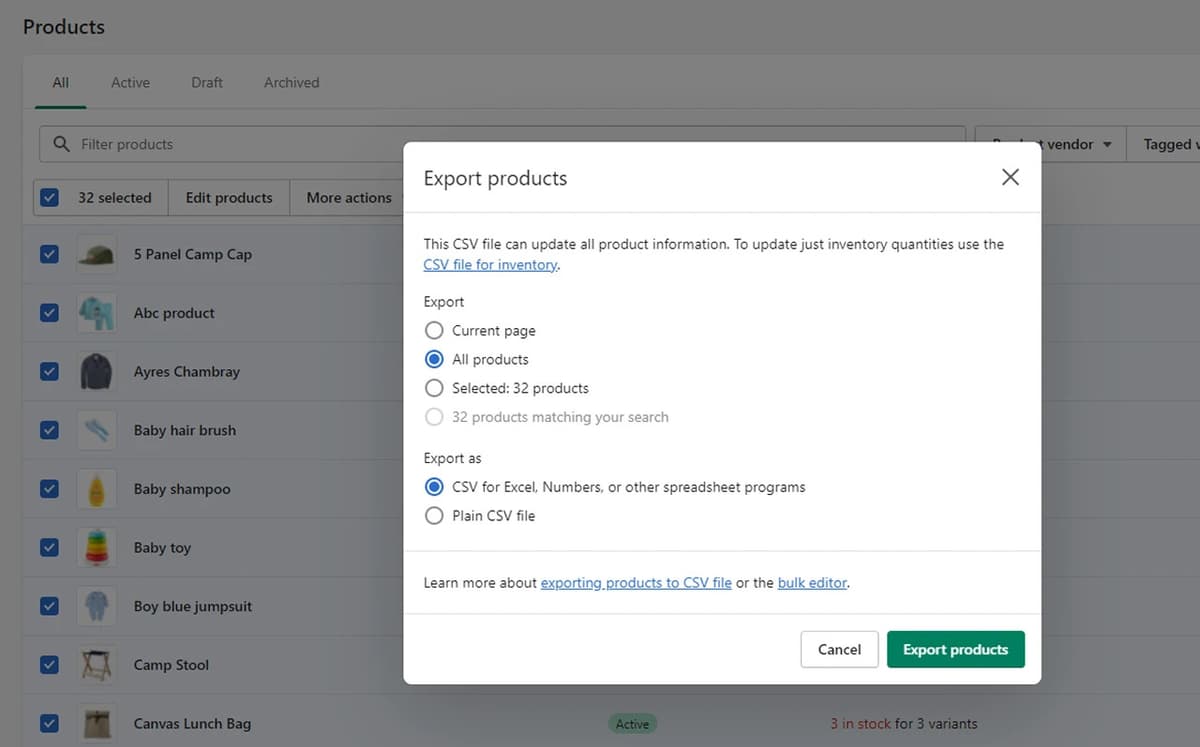
Use WooCommerce's built-in product CSV exporter to pull all products. Clean the CSV to match Shopify's product import template, available in the Shopify admin under Products > Import. Key fields to verify during mapping:
After import, manually verify 10–20 products to confirm data accuracy before moving forward.
WordPress product categories become Shopify collections. Automated tools handle this mapping. In a manual migration, create collections in Shopify and re-tag products to populate them. Smart collections can auto-populate based on product tags, type, or vendor.
Import customer records - email, name, address, and tags - using Shopify's customer CSV import. After migration, send customers a notification that they need to create a new password. This is standard practice in any platform migration and expected by most users.
Importing historical orders preserves reporting continuity and gives the customer service team access to purchase history. Matrixify and LitExtension both support order import. These orders appear in Shopify as closed orders and do not trigger fulfillment workflows.
Shopify includes a native blog system. Export WordPress blog posts using the WordPress XML exporter and migrate them using Matrixify's blog post import feature, or recreate them manually. Preserve original publish dates and keep the post slug (URL handle) as close to the original as possible.
Transfer pages like About, Contact, FAQ, and Terms of Service manually through the Shopify admin under Online Store > Pages. These pages are typically few in number and fast to recreate.
The front-end rebuild gives the Shopify store its visual structure and navigation. Shopify uses a theme system with a visual editor - most changes require no code.
1781248636966.png&w=1200&q=75)
Select a theme that matches the content structure of the existing WordPress store - number of featured product sections, collection page layout, and product page design.
Recreate WordPress navigation menus in Shopify under Online Store > Navigation. Match the structure of the old site as closely as possible. Consistent navigation protects the internal linking patterns that support SEO.
Most WordPress plugins have Shopify app equivalents. Common replacements:
For custom WordPress PHP functionality with no direct Shopify equivalent, a Shopify developer can build a solution using Liquid (Shopify's templating language) or a custom private app.
This is the most critical phase of any migration from WordPress to Shopify. Skipping or rushing SEO steps causes ranking drops that take months to recover from. Treat every step here as non-negotiable.
Every URL that changes in the migration needs a 301 redirect from the old WordPress URL to the new Shopify URL. This transfers link equity and prevents 404 errors for both users and search engines.
Priority order for redirect setup: product pages, collection pages, blog posts, high-traffic static pages. These carry the most SEO equity and the most user traffic.
Edit the SEO fields in Shopify for every product, collection, blog post, and page. The SEO fields appear under the "Search engine listing preview" section on each edit screen. Match the meta titles and descriptions from WordPress unless there is a specific reason to change them.
Shopify uses fixed URL path prefixes that differ from WordPress:
/products/product-handle/collections/collection-handle/blogs/news/post-handle/pages/page-handle301 redirects handle the structural difference, but keeping the product and page handles (slugs) identical to the original URLs minimizes redirect chain depth and preserves anchor text consistency.
Shopify generates a sitemap at yourdomain.com/sitemap.xml. After going live, submit this sitemap in Google Search Console and Bing Webmaster Tools. Request indexing for the highest-traffic pages individually through Search Console's URL inspection tool.
Shopify themes include canonical tags by default on product and collection pages. After launch, verify these render correctly by using View Source on several product pages or running a site audit. Confirm no duplicate content signals appear on collection pages with pagination.
Check Search Console daily for the first two weeks post-launch. Watch for:
Fix 404 errors within 24 hours. A cluster of new 404s after launch usually points to a gap in the redirect map.
A structured testing phase prevents compounding problems from launching under live traffic. Do not skip this phase, even under time pressure.
Schedule the domain cutover during the store's lowest-traffic period. For most ecommerce stores, this falls between Tuesday and Thursday, midnight to 6 AM local time. Avoid go-live during active sales campaigns, major holidays, or peak shopping seasons.
After completing the migration from WordPress to Shopify, these apps replace common WordPress plugin functionality and support store growth:
Function | Recommended App | Free Plan Available |
|---|---|---|
Product reviews | Judge.me Product Reviews | Yes |
Email marketing | Klaviyo or Shopify Email | Yes (usage limits apply) |
SEO audit and optimization | Plug In SEO | Yes |
Bulk URL redirects | Easy Redirects | Yes |
Subscriptions | Seal Subscriptions | Yes |
Loyalty and rewards | Smile: Loyalty & Rewards | Yes |
Product upsell and cross-sell | Pareto Quantity Breaks | Yes |
Live chat and helpdesk | Tidio Live Chat | Yes |
GA4 accurate tracking | TagFly | Yes |
Custom page builder | Shogun or GemPages | Trial available |
Install apps in stages. Start with the ones that replace critical WordPress plugin functionality. Add growth tools after the store has run on Shopify for two to four weeks and the core operations are stable.
A WordPress to Shopify migration is not a weekend task for a store with hundreds of products and years of SEO history. It is a structured process that takes two to sixteen weeks depending on store complexity. Merchants who complete it without traffic loss share a common approach: they audit before they act, they build the redirect map before they go live, and they monitor closely for the first 30 days.
The SEO transition carries the most risk in any platform migration. Skipping the redirect map or going live without meta data in place can set back organic rankings by months. The SEO Insurance Protocol in Phase 5 is not optional - treat it as a prerequisite to launch.
Once the migration is complete, most merchants find that day-to-day operations become more consistent. Plugin conflicts disappear. Checkout performance stabilizes. Security and hosting become platform responsibilities rather than merchant burdens. The time previously spent managing WordPress gets redirected to growing the business.
The steps in this guide give any WordPress store owner a clear path to complete the transfer to Shopify - methodically, without unnecessary risk, and with the SEO equity intact.
Mantle winds down Sept 30, 2026. Move Mantle Billing to the Shopify Billing API: what changes by model, the mutations to call, and how to rebuild flex.
1785145152554.png&w=3840&q=75)
Mantle Affiliates shuts down Aug 14, 2026. Get the exact migration timeline plus 5 alternatives compared: Shoffi, PartnerDock, Affilitrak, Orbit, PartnerJam.
1785316492810.png&w=3840&q=75)
Fast Bundle deactivated on your Shopify store? Don't panic. Discover what caused the pause and how to seamlessly switch to trusted alternatives without losing sales.

Compare the 5 best Shopify mix and match bundle apps in 2026. Real ratings, verified pricing, and features of Fast Bundle, Easy Bundle Builder, Simple Bundles, and more.
1783332249856.png&w=3840&q=75)
See Letsmetrix Q2 2026 data on how freemium, paid & free plans change your time to 50 reviews and Shopify App Store SEO.
1783310383371.png&w=3840&q=75)
Halt Shopify app churn immediately with custom packaging automation and print on demand integration. Boost merchant retention and increase software usage today.
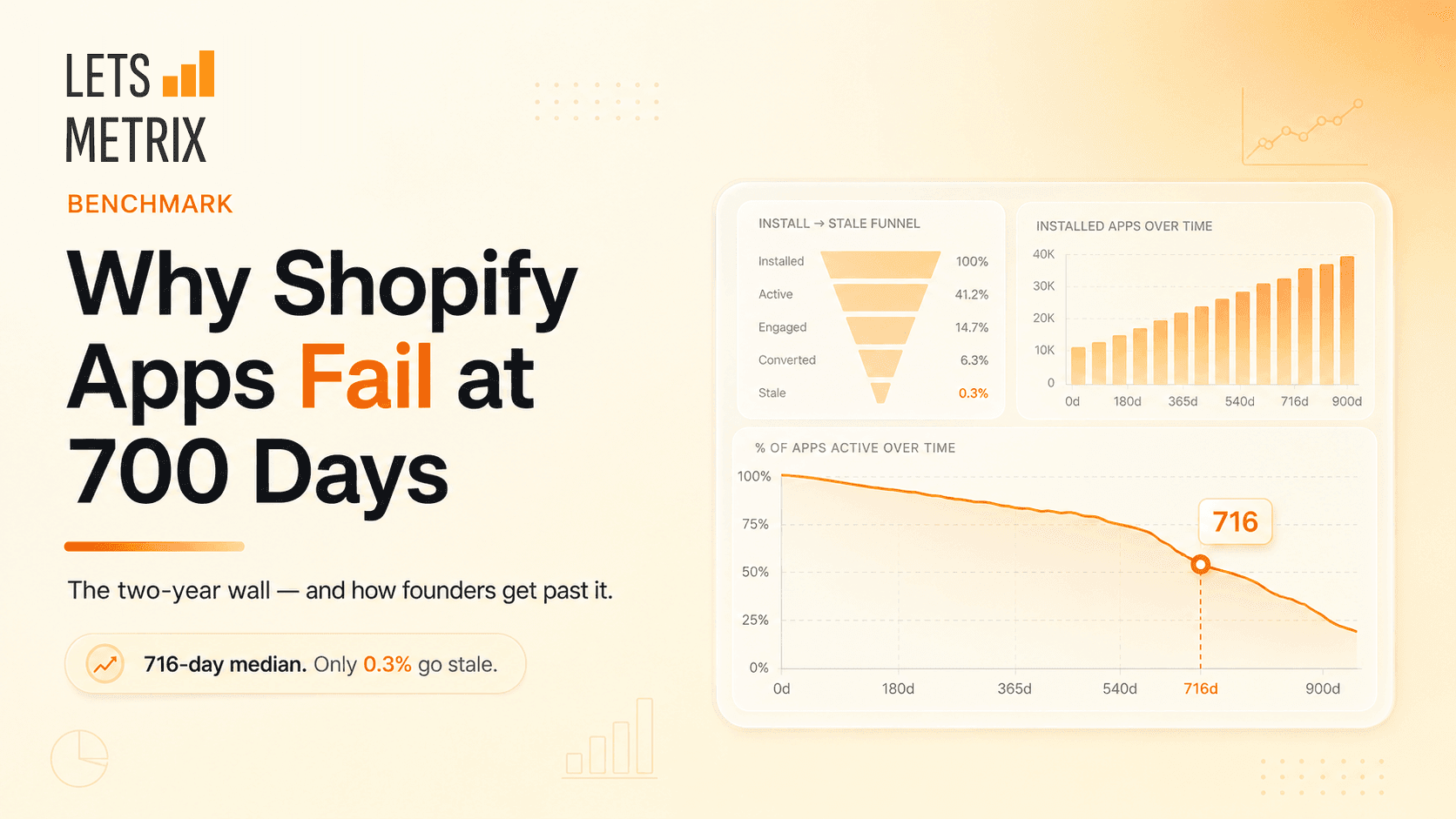
Building a Shopify app? The ones that fail rarely die at launch - they stall near 716 days. Here's why, and how to keep yours alive.

Q2 2026 data on the Shopify App Store's review acquisition funnel. Learn why traction - not survival - is the real bottleneck, and get expert strategies to earn your first 50 reviews.
1781843119189.png&w=3840&q=75)
Stop guessing how the Shopify App Store algorithm works. Audit any app’s real ASO score across 6 key ranking dimensions in seconds - 100% free, no signup required.
HeyMantle shuts down August 14, 2026. Compare 7 alternatives for Shopify app analytics, billing, email, and support and migration checklist before the deadline

Discover the best Shopify helpdesk apps for fast, AI-powered customer support. Compare top-rated tools with live chat, WhatsApp CRM & email integration.
![Best Shopify Pop-ups App in 2026 [+ Comparison Table]](/_next/image?url=https%3A%2F%2Fapi-wix.letsmetrix.com%2Fuploads%2FBestShopifyPopupApps1753692269470.png&w=3840&q=75)
Best pop up app for Shopify in 2026. Compare top-rated tools to grow email lists, boost sales, and cut cart abandonment.
![9 Best Shopify Translation Apps in 2026 [Expert Reviews]](/_next/image?url=https%3A%2F%2Fapi-wix.letsmetrix.com%2Fuploads%2FBestShopifyTranslationApps(1)1772099410877.png&w=3840&q=75)
Drive global sales with high-accuracy AI. Discover the best Shopify translation apps for 2026, featuring real-time translation, image localization, and SEO.
![7 Best Shopify Inventory Management Apps in 2026 [Expert Reviews]](/_next/image?url=https%3A%2F%2Fapi-wix.letsmetrix.com%2Fuploads%2FShopifyInventoryManagementApps1769568798368.jpg&w=3840&q=75)
Master your stock with the top Shopify inventory management apps for 2026. Compare AI-driven forecasting, multi-channel sync, and barcode scanning tools to scale your store.
![10 Best Shopify Page Builder Apps in 2026 [Real Ratings & Use Cases]](/_next/image?url=https%3A%2F%2Fapi-wix.letsmetrix.com%2Fuploads%2Fshopifypagebuilderapps(1)1766045668400.png&w=3840&q=75)
Looking for the best Shopify page builder app to design custom pages without code? Compare 10 top-rated apps with real reviews, features, and pricing to find the right fit for your store.

Discover the top 8 Shopify booking apps for 2026. Compare features, pricing, and ratings for appointments, rentals, and classes to find your perfect match.
1781062586886.png&w=3840&q=75)
Transfer your Shopline store to Shopify in 1–3 weeks without losing data, customers, or Google rankings. A 6-phase guide built around the SEO redirect risk.
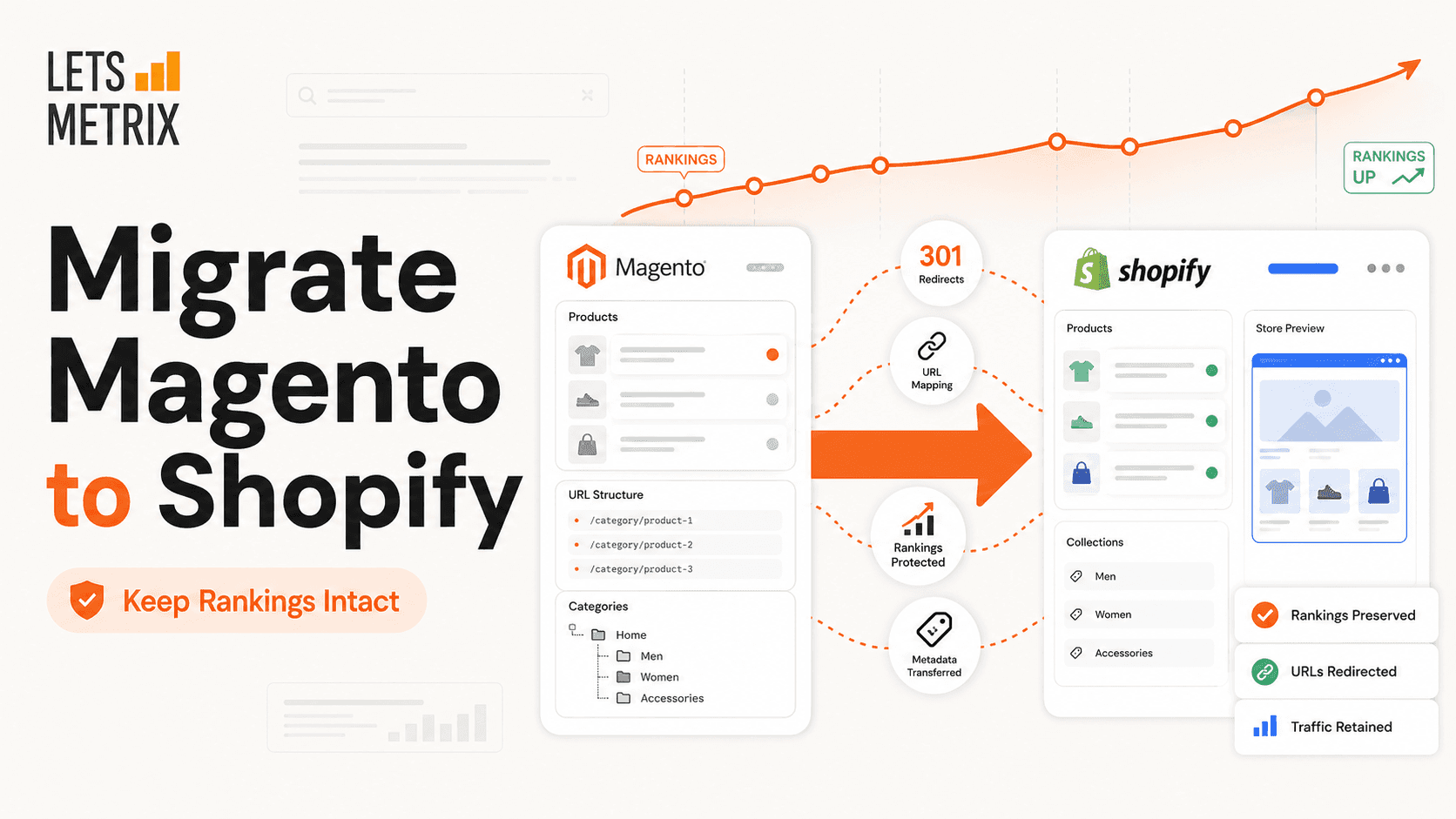
A technical 6-to-12-week roadmap to move from Magento to Shopify: audit, transfer, rebuild, and protect every 301 redirect. Built for store owners, not sales.
1779178565213.png&w=3840&q=75)
Migrate from Squarespace to Shopify in 2026 without losing SEO rankings. A 6-phase playbook covering data transfer, 301 redirects, testing, and go-live.