
Migrate WooCommerce to Shopify Without Losing SEO Rankings
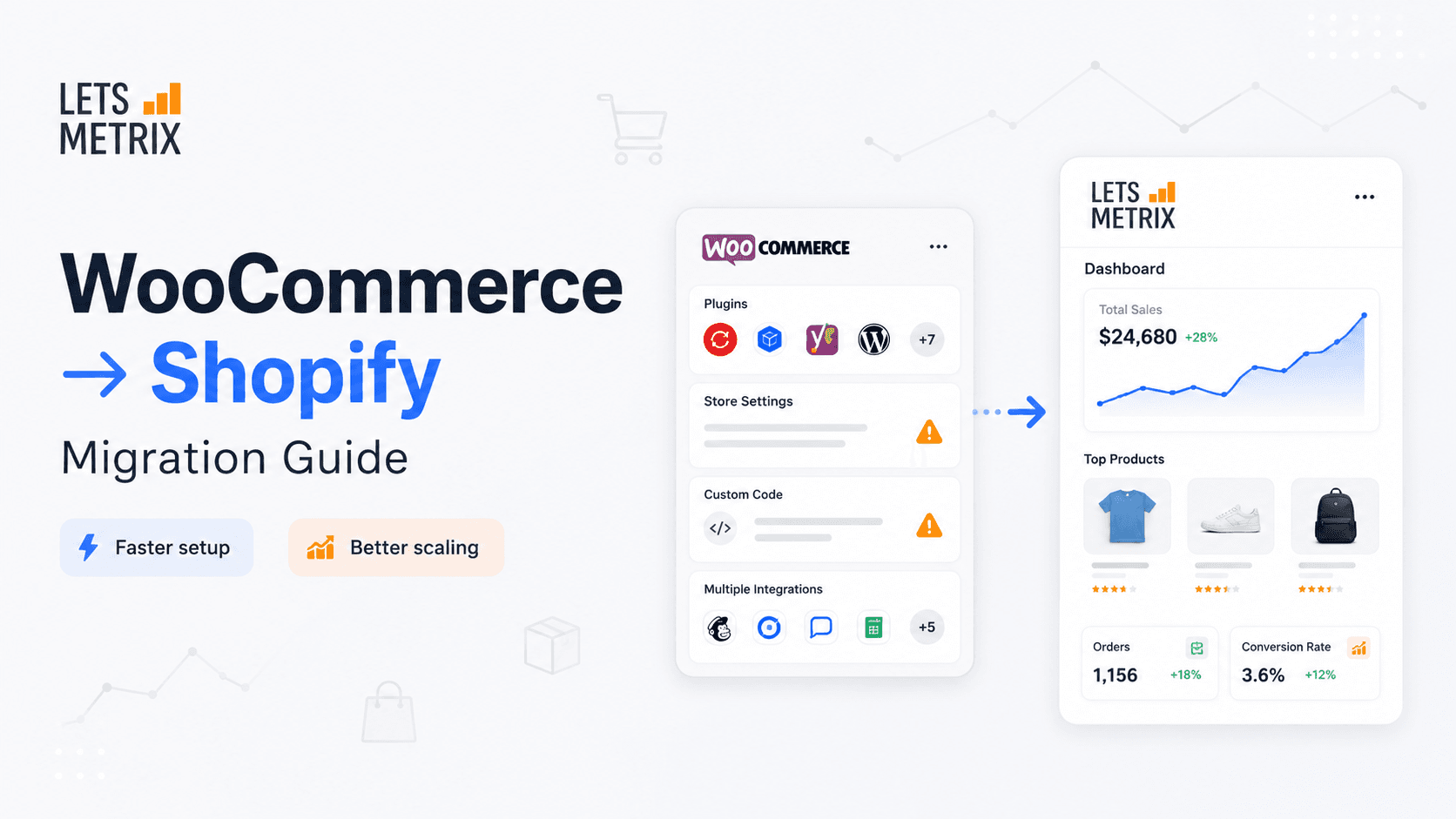
WooCommerce and Shopify are built on fundamentally different models. WooCommerce is an open-source plugin for WordPress. You own the infrastructure - the hosting, the server security, the plugin updates, and the performance optimization. Shopify is a fully hosted SaaS platform. It owns the infrastructure for you. Migrating from WooCommerce to Shopify means moving your product catalog, customer data, order history, and store design from a self-hosted WordPress environment to Shopify's fully managed SaaS platform - then rebuilding SEO signals to prevent ranking loss during the URL structure change. That shift changes what you spend time on as a merchant.
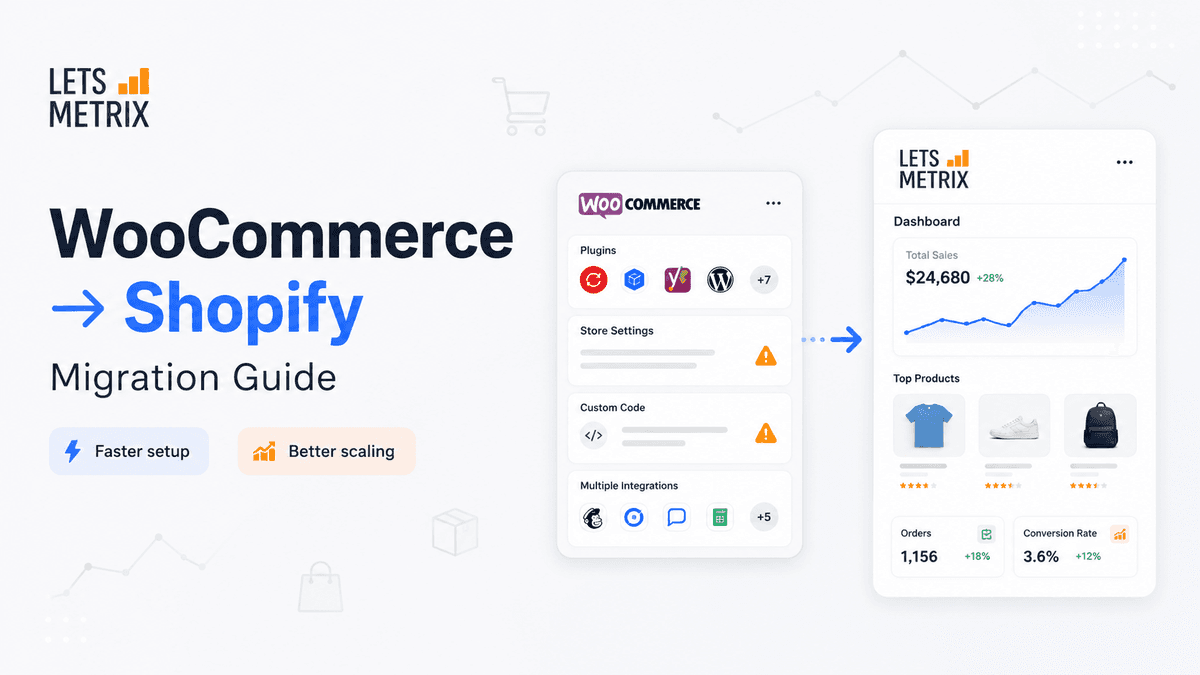
This guide is structured around six sequential phases. Each phase reduces risk for the next. Merchants who follow this sequence - audit, method selection, data transfer, front-end rebuild, SEO protection, and go-live testing - complete the migration with their data intact, their search rankings stable, and their customer experience uninterrupted.
Factor | Details |
|---|---|
Migration complexity | Under 500 simple/variable products, no custom checkout logic, no subscriptions, single currency. Medium: 500-5,000 products, subscription plugins, multilingual setup, or custom pricing rules. High: Over 5,000 products, custom-built plugins, headless architecture, or complex B2B pricing. |
Estimated time | 1-3 days for small stores; 2-4 weeks for mid-size stores, 6-12 weeks for complex |
Core data to transfer | Products, product variants, customers, orders, blog posts, static pages, coupons, and media files |
Migration methods available | CSV import, Shopify Store Importer app (free), third-party tools such as LitExtension or Cart2Cart, custom API migration |
Biggest SEO risk | WooCommerce and Shopify use different URL structures; without 301 redirects, changed URLs lose their ranking signals |
Platform cost after migration | Shopify Basic starts at $39/month monthly billing, or $29/month with annual billing; Grow plan at $105/month monthly billing, or $79/month with annual billing; Advanced at $$399/month monthly billing, or $299/month with annual billing. |
Key success benchmark | No more than 5-10% organic traffic decline within 30 days post-migration; full recovery within 60 days |
Why WooCommerce Merchants Switch to Shopify?
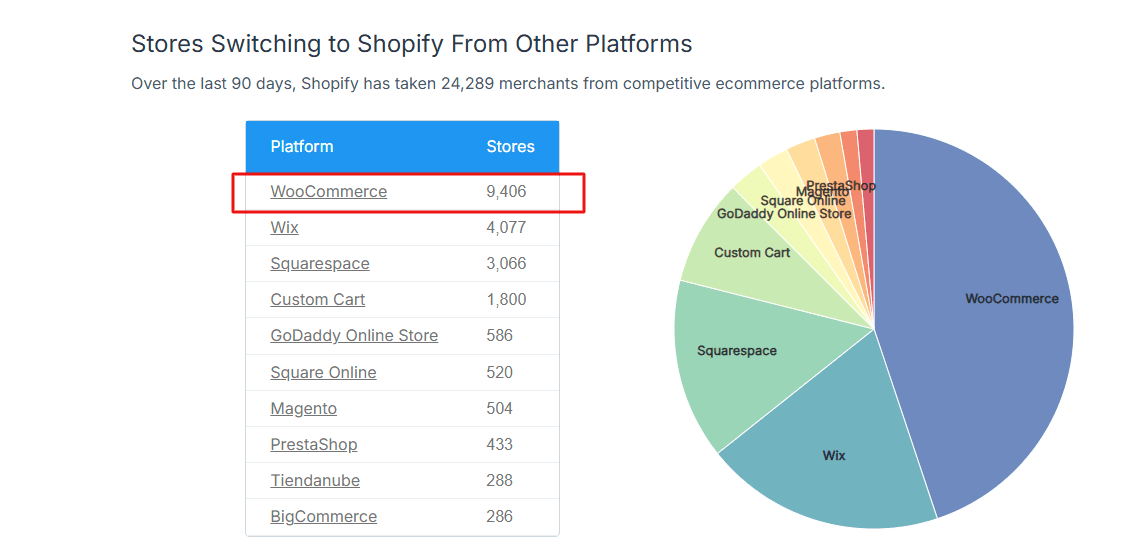
The decision to transfer WooCommerce to Shopify is a trade: deep technical control in exchange for operational simplicity. For many merchants, that trade becomes compelling as the store grows and the cost of maintaining a WordPress infrastructure increases.
Hosting and Uptime
Shopify handles infrastructure for all merchants on managed hosting with strong historical uptime performance. Shopify Plus includes a contractual 99.99% uptime SLA - standard plans rely on Shopify's general service reliability without a written guarantee. WooCommerce performance depends on the hosting provider the merchant selects. A low-quality hosting plan produces slow page loads and vulnerability to traffic spikes. Shopify removes this dependency entirely.
Security and PCI Compliance
Shopify maintains PCI DSS Level 1 compliance across all merchant stores. WooCommerce store owners are responsible for securing their own server environment, keeping WordPress and plugin versions current, and managing SSL certificates. Security breaches on self-hosted stores are frequently traced to outdated plugins or misconfigured server settings.
Checkout Performance
Shopify's checkout is optimized at the platform level and subject to continuous improvement across all stores simultaneously. WooCommerce checkout performance depends on the theme, the plugin stack, and the hosting environment. A bloated plugin stack on WooCommerce adds load time to every checkout step.
Total Cost of Ownership
WooCommerce is free to install, but a fully functional WooCommerce store carries costs for hosting ($10–$100+ per month), premium plugins ($200–$600+ per year), security tools, and developer time for maintenance. Shopify consolidates hosting, security, and core ecommerce functionality into a single monthly plan, which makes the real cost comparison closer than the sticker price suggests.
The App Ecosystem
The Shopify App Store contains over 20,000 apps built specifically for the platform. Most common ecommerce requirements - subscriptions, reviews, loyalty programs, upsells, and advanced shipping rules - have multiple app options available with straightforward installation and no server configuration required.
What to Audit Before Migrating from WooCommerce to Shopify
A migration is only as clean as the audit that precedes it. Before touching Shopify, document the full scope of your WooCommerce store. This step prevents surprises during the transfer and gives you a baseline to verify completeness afterward.
Data Inventory
Open your WooCommerce admin and record the exact counts for:
- Total products by type: simple, variable, grouped, external
- Total product variants and attribute combinations
- Total customer accounts
- Total orders and the date range you need to carry over
- Product categories and tags
- Static pages and blog posts
- Active coupons and discount codes
- Media files: product images, gallery images, downloadable files
These numbers become your verification checklist after the import completes.
Plugin and Functionality Audit
List every active WooCommerce plugin and the specific function each one performs in your store. Then identify the Shopify equivalent. Some plugins map directly to native Shopify features. Others require a Shopify app. A few highly customized plugins require custom Shopify development.
WooCommerce Plugin Type | Shopify Equivalent |
|---|---|
Yoast SEO or RankMath | Native Shopify SEO fields plus an SEO app such as Tapita SEO or SearchPie |
WooCommerce Subscriptions | |
WPML for multilingual stores | Shopify Markets (native feature) or Hextom app |
WooCommerce Bookings | |
Custom shipping rules | Shopify Shipping plus Shopify Functions (on Shopify Plus) or a third-party shipping app like ParcelWILL or Synctrack |
WooCommerce Memberships | |
WooCommerce Product Bundles | Shopify Bundles (native, free) or third party apps like Pareto or Fast Bundle |
SEO Crawl and URL Export
Crawl your live WooCommerce site with a tool such as Screaming Frog SEO Spider before the migration begins. Export a complete list of all URLs - product pages, category pages, blog posts, static pages, and pagination. This list is the foundation for the 301 redirect map you build in Phase 5.
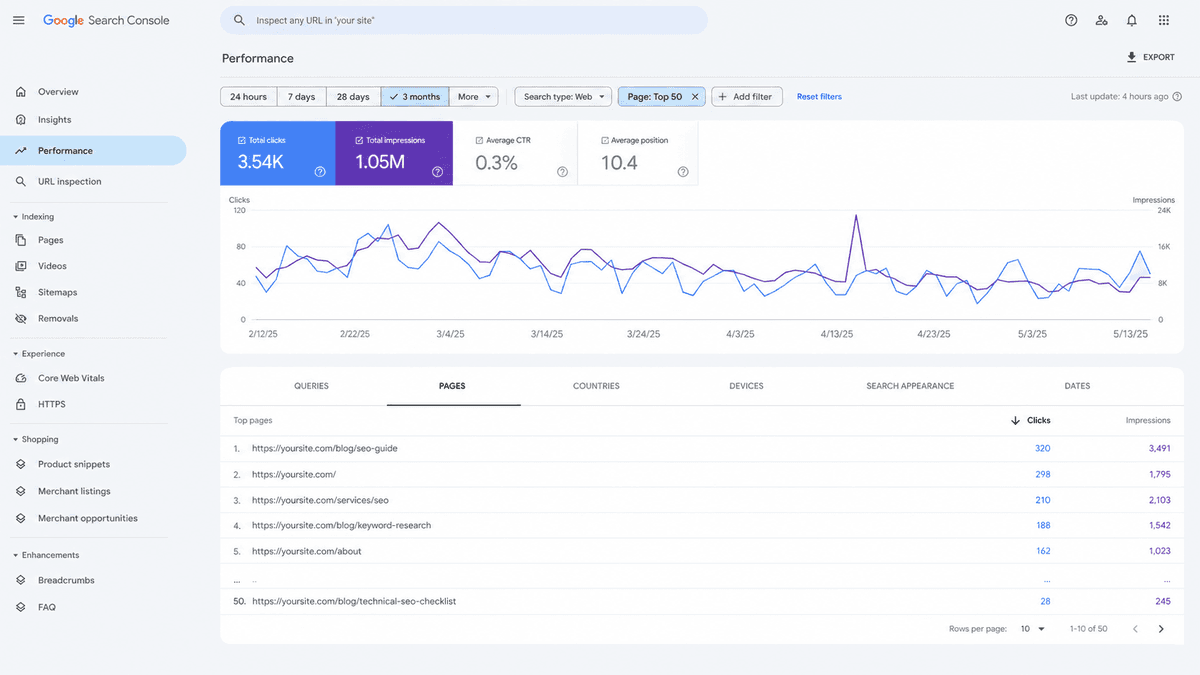
Also pull the Performance report from Google Search Console, filtered by page, and sort by total clicks. Identify your top 50 highest-traffic URLs. These pages deserve the most attention during the redirect mapping process.
Revenue and Traffic Baseline
Record your current monthly revenue, average conversion rate, and organic search traffic volume. You need these numbers to evaluate whether the migration succeeded or introduced problems.
Choose the Right Migration Method for Your Store
Three methods exist for moving store data from WooCommerce to Shopify. The right choice depends on store size, data complexity, and budget.
Method 1: Manual CSV Import
Shopify accepts CSV files for products and customers. WooCommerce can export both in CSV format. This method works for stores with a clean, simple product catalog under 200 items and minimal order history requirements. Order history does not import via CSV. Custom fields and product meta data require manual cleanup. For very small stores, it is the fastest and lowest-cost path.
Method 2: Third-Party Migration Tools
Tools such as Matrixify automate the full migration - products, orders, customers, coupons, product reviews, and blog posts - with field mapping controls and re-migration options if issues appear. They charge based on the volume of entities migrated. These tools are suited to mid-size and large stores where data completeness is a priority and manual cleanup at scale would be time-consuming.
Method 3: Custom API Migration
For stores with highly customized data structures that no automated tool handles correctly, a developer can build a custom migration script using the WooCommerce REST API and the Shopify Admin API. This gives maximum control over data mapping and transformation but requires the most time and cost. It is the appropriate choice when the other three methods fail to migrate critical data accurately.
Method | Best For | Data Covered | Approximate Cost |
|---|---|---|---|
Manual CSV | Stores under 200 products | Products, customers | Free |
Store Importer app | Small to mid-size stores | Products, customers, orders | Free |
LitExtension or Cart2Cart | Mid-size to large stores | Full data including reviews and coupons | $29 - $300+ depending on volume |
Custom API migration | Complex or custom-built stores | Any data structure | Developer hourly rate |
How to Transfer Products, Orders, and Customers from WooCommerce to Shopify
This phase covers the technical transfer process. The steps below reflect the Store Importer method, which covers the majority of mid-size store migrations. Adjust the specific tools based on your method selection from Phase 2.
Step 1: Create Your Shopify Store
Start a Shopify free trial and select your plan. Do not connect your custom domain yet. Run the entire migration and testing process on the temporary .myshopify.com domain. The domain switch happens in Phase 6, after testing is complete.
💡 Use Letsmetrix referral link to enjoy $1/month for your first 3 months: https://shopify.pxf.io/Zday50

Step 2: Export Data from WooCommerce
In WordPress admin, go to WooCommerce > Export and export products, customers, and orders as CSV files. Use the native WordPress export tool under Tools > Export to export pages and blog posts in XML format. If your WooCommerce export options are limited, install the WooCommerce Customer/Order/Coupon Export plugin to unlock more complete export functionality.
Step 3: Run the Store Importer
- In your Shopify admin, go to Apps > Shopify App Store and install the Store Importer app.
- Open the app and select WooCommerce as the source platform.
- Upload the export files following the app's on-screen prompts.
- Review the pre-import summary - it shows what data the app detected and what it plans to migrate.
- Confirm the import and wait for the completion report.
Step 4: Audit the Imported Data
After the import finishes, verify the following in Shopify admin:
- Product count matches the WooCommerce export count
- Product images transferred and display on product pages
- Variants and options map to the correct products
- Customer records include valid email addresses
- Order history shows correct statuses and totals
- Product categories became Shopify collections
- Blog posts and static pages transferred with their content intact
Missing images and mismatched variants are the most common import problems. Fix discrepancies before moving to the next phase.
Step 5: Resolve Import Gaps
If reviews, coupons, or custom meta fields did not transfer, use a third-party migration tool for those specific data types or enter them manually. Prioritize data by business value: active customer records and product data matter more than historical order archives from several years ago.
Rebuild Your Shopify Storefront
Shopify does not replicate your WooCommerce theme. The front-end is a fresh build on Shopify's theme framework. This is an opportunity to improve the store's design, performance, and user experience rather than simply reproducing what existed before.
Select a Shopify Theme
The Shopify Theme Store offers free and paid themes. Shopify's free themes - Dawn, Sense, Craft, and others - are well-built, fast-loading, and regularly maintained by Shopify's theme team. Paid themes offer more built-in section types and design flexibility. Choose a theme that fits your product type and content volume, not just the visual aesthetic.
Configure the Theme Editor
Use Shopify's drag-and-drop theme editor to set up:
- Homepage sections: hero banner, featured collections, featured products
- Navigation: main menu structure and footer menu links
- Brand settings: logo, colors, typography
- Product page layout and media presentation
- Cart behavior: drawer cart or dedicated cart page
Replace WooCommerce Plugin Functionality
Work through the plugin audit from Phase 1. Install the Shopify app equivalent for each plugin your store requires. Test each app on the temporary .myshopify.com domain before go-live. Confirm that the app performs the same function your WooCommerce plugin did and that it integrates correctly with your theme and other apps.
Configure Payments, Taxes, and Shipping
Set up Shopify Payments if it is available in your country. Using Shopify Payments eliminates the additional transaction fee (0.6%–2% depending on your plan) that applies when using third-party payment gateways. Add PayPal, Apple Pay, and Google Pay through the Shopify Payments dashboard.
Set tax rules in Settings > Taxes and Duties. Build shipping zones and rates in Settings > Shipping and Delivery to match the options your WooCommerce store offered. Verify that shipping rates calculate correctly on the cart page before go-live.
How to Migrate from WooCommerce to Shopify Without Losing Search Rankings
URL structure is the central SEO challenge in any WooCommerce to Shopify migration. WooCommerce uses /product/product-name and /product-category/category-name. Shopify uses /products/product-name and /collections/collection-name. Every URL that changes is a potential broken link and a lost ranking signal unless you set up a 301 redirect.
A 301 redirect tells search engines that the page has moved permanently. It transfers the link equity from the old URL to the new one. Without redirects, Google treats every changed URL as a new page with no history, and your rankings reset.
Build the 301 Redirect Map
Take the URL export from Phase 1 and create a mapping spreadsheet with two columns: the old WooCommerce URL path and the new Shopify URL path. Start with your highest-traffic pages from the Google Search Console export. Work through products, collections, blog posts, and static pages in order of traffic volume.
Common URL mapping patterns:
- /product/blue-widget maps to /products/blue-widget
- /product-category/widgets maps to /collections/widgets
- /shop/ maps to /collections/all
- /?page_id=123 maps to the equivalent Shopify page slug
Upload Redirects to Shopify
In Shopify admin, go to Online Store > Navigation > URL Redirects. Upload your redirect map in bulk using the CSV import option. The CSV format requires two columns: the old path in the "Redirect from" column and the new path in the "Redirect to" column. Upload this file before you switch the domain in Phase 6.
Migrate Meta Titles and Descriptions
Shopify's product, collection, and page editors include SEO fields for meta title and meta description at the bottom of each edit screen. Fill in these fields for every page. For large catalogs, use the Shopify product CSV import format - meta title and meta description are supported columns in the product import file, which allows bulk updates without editing each product one by one.
Verify Structured Data
Most Shopify themes generate product schema markup (JSON-LD) automatically. Open a product page on your test store, view the page source, and search for application/ld+json to confirm structured data is present. If it is absent, install a Shopify SEO app that adds product schema markup. Structured data helps search engines understand your product pages and can improve how they appear in search results.
Submit Your New Sitemap
Shopify generates a sitemap at yourstore.com/sitemap.xml. After go-live, submit this URL to Google Search Console under Sitemaps. This signals the new site structure to Google and accelerates recrawling.
Monitor Crawl Errors for 30 Days Post-Migration
Check Google Search Console's Pages report weekly in the 30 days after go-live. Any page showing a 404 status is either missing a redirect or has a redirect that points to the wrong destination. Address every 404 error that previously received organic traffic. A short spike in 404 errors in the first week is normal during DNS propagation; a sustained spike after week one indicates a gap in the redirect map.
Test Your Store and Plan the Go-Live Window
Before pointing your domain to Shopify, run a complete test of the store on its temporary .myshopify.com URL. Problems found here cost nothing to fix. Problems found after go-live cost sales and customer trust.
Pre-Launch Testing Checklist
- Place a test order through every active payment method
- Complete checkout on both mobile and desktop
- Verify that all product variants add the correct item to the cart at the correct price
- Apply discount codes and confirm they calculate correctly at checkout
- Confirm that order confirmation and shipping notification emails send correctly
- Verify that inventory levels display on product pages
- Test all contact forms and custom forms on the site
- Check all navigation links across the main menu, footer, and breadcrumbs
- Confirm that all installed apps function end-to-end
- Run the store through Google PageSpeed Insights and note the performance score
- Test that 301 redirects from old WooCommerce URLs resolve to the correct Shopify pages
Choose the Go-Live Window
Switch your domain during your store's lowest-traffic period. For most ecommerce stores, this falls between midnight and 6 AM on Tuesday or Wednesday in your primary customer's timezone. Avoid scheduling the domain switch during active promotions, sale periods, or the weeks before peak season.
Domain Switch Process
- In Shopify admin, go to Settings > Domains and click Connect existing domain.
- Enter your domain name and follow Shopify's DNS configuration instructions.
- Update the DNS A record and CNAME record at your domain registrar to point to Shopify's servers.
- DNS propagation takes 24–48 hours. Keep your WooCommerce store online during this window.
- Once Shopify confirms the domain is active, set it as the primary domain.
- Enable the automatic redirect from yourstore.myshopify.com to your custom domain in domain settings.
First-Hour Post-Go-Live Verification
Within the first 60 minutes after the domain resolves to Shopify, confirm:
- The live domain loads the Shopify storefront
- SSL is active and the browser shows a secure connection
- A real test order completes end-to-end
- Google Analytics and ad tracking pixels fire on key pages
- A sample of old WooCommerce URLs redirect to the correct Shopify destination
Top Shopify Apps to Power Your Store After Migration
WooCommerce stores extend functionality through plugins. On Shopify, apps fill the same role. Install the apps your store requires at launch, and add more as specific needs arise. Every active app adds a small amount of overhead to page rendering - keep the app list lean and audit it every 90 days.
Use Case | Recommended App | Notes |
|---|---|---|
Product reviews | Judge.me or Loox | Judge.me has a functional free plan; both support importing reviews from WooCommerce via CSV |
Email marketing and automation | Klaviyo or Shopify Email | Klaviyo offers advanced segmentation and flows; Shopify Email is free for up to 10,000 emails per month |
SEO meta fields and structured data | SeoWILL or Tapita | Both handle bulk meta field editing, image alt text, and structured data validation |
Post-purchase upsell | ReConvert or AfterSell | Both integrate with Shopify's post-purchase checkout extension point |
Loyalty and rewards | Smile.io or Yotpo Loyalty | Points programs, referral systems, and VIP tiers with on-site widgets |
Inventory management | Omega Feed or Simprosys | Both apps handle multi-supplier product feeds |
Subscription products | Recharge or Seal Subscriptions | Seal Subscriptions has a generous free tier for stores with low subscription volume |
Abandoned checkout recovery | Klaviyo or native Shopify | Shopify sends abandoned checkout emails natively through Settings > Notifications at no extra cost |
How Much Does It Cost to Migrate from WooCommerce to Shopify?
Migration cost varies widely with store size and chosen method. A realistic breakdown for most merchants:
Cost Component | Small Store | Mid-Size Store | Large/Complex Store |
|---|---|---|---|
Shopify subscription (first month) | $29 - $39 | $79 - $105 | $299 - $399 |
Migration tool fees | $0 | $29 - $300 | $300 - $1,500+ |
Theme (free or paid) | $0 - $180 | $180 - $350 | Custom build $3,000 - $15,000+ |
Apps replacing WooCommerce plugins | $0 - $30/mo | $50 - $150/mo | $200 - $500+/mo |
Developer/consultant time | $0 (self-service) | $1,000 - $5,000 | $10,000 - $50,000+ |
Typical total first-month cost | $50 - $300 | $1,500 - $7,000 | $15,000 - $70,000+ |
Most merchants underestimate the developer time component. If you don't have in-house Shopify experience, budget for at least 20-40 hours of consultant time for a mid-size store to handle data cleanup, theme customization, and app configuration.
What Comes Next After You Switch to Shopify
Completing the migration is the start of a new operating model, not the finish line. The 60 days after go-live are a monitoring period. Watch organic traffic, conversion rate, site speed scores, and the Coverage report in Google Search Console. Compare these numbers against the baseline you recorded in Phase 1.
If organic traffic drops more than 10–15% and holds below baseline past the 30-day mark, audit the redirect map for gaps. Check Google Search Console for 404 errors and identify which URLs are missing redirects. If conversion rate drops, compare the checkout experience on both platforms and pinpoint friction points - form field count, payment options, or page load time are common sources.
The merchants who complete a WooCommerce to Shopify migration without revenue disruption are those who treat it as a project with defined phases rather than a one-day switch. The audit gives the transfer its accuracy. The redirect map gives the SEO its continuity. The testing window gives the go-live its safety. Each phase depends on the one before it.
A migration done in sequence and with adequate preparation delivers what most merchants want: a faster store, a lighter maintenance burden, and a platform that scales without requiring ongoing infrastructure management. The process is methodical, but the outcome is a store that runs on a more stable foundation than WooCommerce alone can provide at scale.
1781843119189.png&w=3840&q=75)

![Best Shopify Pop-ups App in 2026 [+ Comparison Table]](/_next/image?url=https%3A%2F%2Fapi-wix.letsmetrix.com%2Fuploads%2FBestShopifyPopupApps1753692269470.png&w=3840&q=75)
![9 Best Shopify Translation Apps in 2026 [Expert Reviews]](/_next/image?url=https%3A%2F%2Fapi-wix.letsmetrix.com%2Fuploads%2FBestShopifyTranslationApps(1)1772099410877.png&w=3840&q=75)
![7 Best Shopify Inventory Management Apps in 2026 [Expert Reviews]](/_next/image?url=https%3A%2F%2Fapi-wix.letsmetrix.com%2Fuploads%2FShopifyInventoryManagementApps1769568798368.jpg&w=3840&q=75)
![10 Best Shopify Page Builder Apps in 2026 [Real Ratings & Use Cases]](/_next/image?url=https%3A%2F%2Fapi-wix.letsmetrix.com%2Fuploads%2Fshopifypagebuilderapps(1)1766045668400.png&w=3840&q=75)

1781062586886.png&w=3840&q=75)
1781252894352.png&w=3840&q=75)
1779178565213.png&w=3840&q=75)
1779079852354.png&w=3840&q=75)
1778146500970.png&w=3840&q=75)
1778052641749.png&w=3840&q=75)
1778220787051.png&w=3840&q=75)
1777884794983.png&w=3840&q=75)