
Ecommerce Knowledge
Mantle Billing Migration: A Shopify Developer's Guide
Mantle winds down Sept 30, 2026. Move Mantle Billing to the Shopify Billing API: what changes by model, the mutations to call, and how to rebuild flex.
29/07/2026Lily Dinh
Shopline built its reputation serving merchants in Taiwan, Hong Kong, Malaysia, and Southeast Asia. For regional commerce, it works well. But when a business targets customers outside Asia - or needs payment gateways, apps, and SEO tools that operate on a global scale - the platform reaches its ceiling fast.
Shopify powers businesses across 175+ countries. Its app ecosystem, built-in internationalization tools, and developer network give merchants room to grow without rebuilding every time the business model shifts. For merchants ready to make that move, the process to migrate from Shopline to Shopify follows a clear, repeatable structure.
This guide breaks the full migration into six phases: audit, method selection, data transfer, front-end rebuild, SEO protection, and go-live testing. Each phase includes the specific steps needed to complete it without losing data, rankings, or customer trust. This guide reflects current platform capabilities and migration practices as of 2026.
Who this is for: Online merchants currently running their store on Shopline who want to switch to Shopify and need a complete, step-by-step process to do it correctly.
TL;DR | Details |
|---|---|
Goal | Transfer all store data, design, and SEO value from Shopline to Shopify |
Total timeline | 1–3 weeks (depends on store size and complexity) |
Difficulty | Moderate - manageable without a developer for most stores |
Biggest risk | Loss of organic search rankings from missing 301 redirects |
Best suited for | Stores expanding internationally or needing a larger app ecosystem |
Cost range | Free (manual CSV method) to several hundred dollars (migration tools or experts) |
Key phases | Audit → Method → Transfer → Rebuild → SEO → Go-Live |
The decision to transfer a store from Shopline to Shopify is not about Shopline being broken. It is about the ceiling. As businesses grow, several friction points make it harder to scale on Shopline.
1781062586886.png&w=1200&q=75)
Shopline focuses on Asian payment rails: local bank transfers, LINE Pay, and similar regional gateways. Merchants targeting customers in Europe, North America, or Australia find the payment coverage narrow. Shopify Payments is available in 40 countries, and Shopify supports 100+ third-party gateways including PayPal, Amazon Pay, and regional options.
The Shopline app marketplace carries a fraction of what Shopify offers. The Shopify App Store hosts 20,000+ vetted third-party integrations - from email marketing automation to loyalty programs, subscription billing, and advanced analytics. Merchants often find that the specific tool they need simply does not exist on Shopline, while a Shopify equivalent is available the same day.
Shopify Markets allows merchants to target multiple countries from a single store - with localized pricing, translated storefronts, and market-specific domains or subfolders. This structure is built for international SEO while Shopline's multi-market tooling is more limited than Shopify Markets.
Shopify's global developer community is significantly larger. Shopify Liquid - the templating language - has extensive documentation, tutorials, and freelance expertise available worldwide. Finding a developer to customize a Shopline theme outside of Asia is difficult by comparison.
Shopify trades publicly, publishes quarterly results, and runs a formal partner program with tens of thousands of agencies. For merchants making long-term infrastructure decisions, the platform stability and investment into new features - including AI-powered commerce tools - gives confidence that Shopify will remain viable for years ahead.
A migration without a prior audit creates problems mid-transfer. Spend one to two days mapping out what exists in the Shopline store. This prevents data loss and makes the rest of the process predictable.
Count and document the following in the current Shopline store:
Export or manually document every public URL in the Shopline store. This includes every product page, collection page, blog post, and static page. The URL structure on Shopify will differ. Without a URL map, setting up 301 redirects later becomes a guessing exercise - and missed redirects mean lost SEO rankings.
A spreadsheet with two columns works well: the old Shopline URL in column A, and the corresponding new Shopify URL in column B once the Shopify store is built.
List every app or integration active on the Shopline store. For each one, confirm whether a Shopify equivalent exists. Note any custom code, webhooks, or third-party service connections (such as email marketing platforms, loyalty programs, or shipping carriers) that will need to be reconnected.
Before changing anything, record the current organic search performance. Use Google Search Console to export the top-performing pages by clicks and impressions. This data becomes the benchmark for post-migration SEO monitoring. If rankings drop after the switch to Shopify, this baseline shows exactly which pages lost traffic.
There is no single correct way to transfer a store from Shopline to Shopify. The right method depends on store size, budget, and technical comfort level.
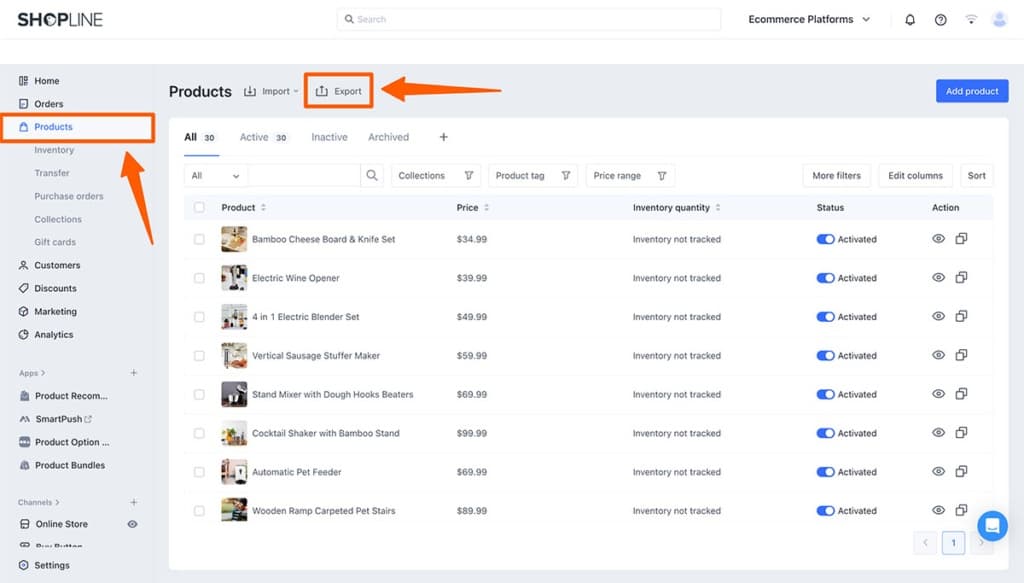
Shopline allows merchants to export product data as CSV files. Shopify accepts CSV imports for products, customers, and orders. For stores with fewer than 500 products and a simple structure, the manual CSV route is free and gives full control over the data.
The drawback: CSV files exported from Shopline do not always match Shopify's required import format. Manual formatting and cleanup is needed before importing. This takes time and requires care to avoid errors.
Services such as LitExtension and Cart2Cart automate the transfer of products, customers, orders, and categories from Shopline to Shopify. These tools handle the format differences between platforms, reducing manual cleanup significantly.
Automated migration services charge a one-time fee based on the volume of records being transferred. For stores with hundreds of products and thousands of customers, the time saved justifies the cost.
Matrixify is a Shopify app that handles bulk data import and export via Excel and CSV. It supports complex migrations including metafields, custom data structures, and large product catalogs. Merchants comfortable working with spreadsheets and structured data will find Matrixify the most flexible option available within the Shopify ecosystem.
The Shopify Experts marketplace lists agencies and freelancers who specialize in platform migrations. For stores with custom integrations, large catalogs, or enterprise-level complexity, hiring an expert protects against data loss and ensures the migration completes without disruption to live sales.
With the audit complete and the migration method selected, the technical transfer begins. Work through these steps in order to avoid data conflicts.
Create a Shopify account and select the appropriate plan. Complete the store settings before importing any data: store name, currency, timezone (set to Asia/Ho_Chi_Minh or the relevant region), contact information, and legal pages. Do not connect the custom domain yet - leave the store on its default myshopify.com URL until the migration is complete and tested.
Log into the Shopline admin and export the store data. Shopline provides CSV exports for products and customer data. Export in sections: products first, then customers, then orders if historical order data is required. Store the exported files in a clearly labeled folder with dates.
Open the exported CSV files and compare the column headers to Shopify's required import format. Shopify's Help Center documents the exact column structure for product and customer imports. Rename columns, remove unsupported fields, and check for formatting issues in product descriptions or special characters in titles. Clean data now to prevent failed imports later.
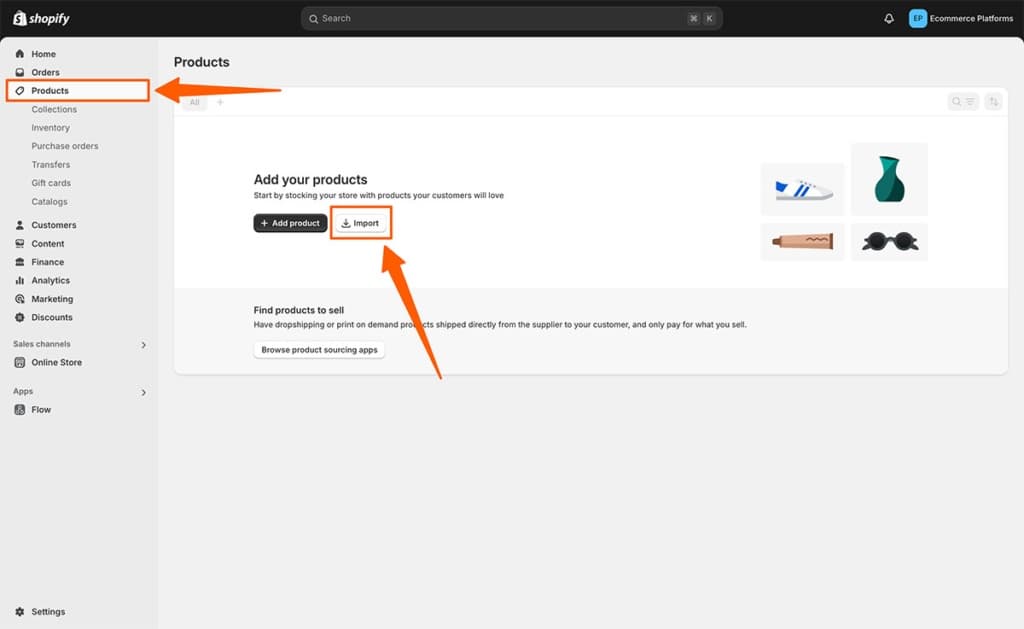
In the Shopify admin, go to Products and use the Import function to upload the product CSV. Shopify processes the file and flags any rows with errors. Fix errors and re-upload until all products import without issues. After the import, check a sample of product pages - verify titles, descriptions, prices, images, and variants are all correct.
Shopify does not import collection structures directly from Shopline CSV exports. Recreate product collections (categories) manually in the Shopify admin. For large catalogs, use automated collections with conditions based on product tags - this reduces manual work and keeps collections dynamic as new products are added.
Import the customer CSV into Shopify. Customer passwords cannot transfer between platforms - this is a platform security restriction. Imported customers will need to reset their passwords when they log in for the first time. A post-launch email to the customer base explaining this step prevents confusion.
Historical orders are not required for a functional Shopify store, but they matter for customer service and reporting continuity. If transferring order history, use Matrixify or an automated migration tool - Shopify's native CSV import does not support order records. Verify that order statuses, totals, and customer associations are correct after import.
Set up payment gateways in Settings > Payments. Configure shipping rates and zones in Settings > Shipping and Delivery. Set up tax rules in Settings > Taxes. These settings cannot migrate from Shopline - they require manual configuration on Shopify. Test the checkout process with a real transaction (use a small amount and refund it) before going live.
Shopline themes do not transfer to Shopify. The storefront needs to be rebuilt using Shopify's theme system. This phase focuses on design, navigation, and page content.
1779175933837.png&w=1200&q=75)
Shopify's Theme Store offers free and paid themes. Evaluate themes based on the product type, catalog size, and visual direction of the brand. Key factors include mobile performance, filtering capabilities, and support for the features the store relies on (video sections, size charts, quick-buy buttons, etc.).
Paid themes from reputable developers typically include more built-in features and better ongoing support than free alternatives. For merchants with unique needs, the Shopify Experts marketplace includes theme developers who can build or customize a theme to specification.
Shopify's visual theme editor requires no coding knowledge for standard customizations - colors, fonts, section layouts, and homepage content all adjust through a drag-and-drop interface. For advanced customizations, Shopify's Liquid templating language is well-documented and widely supported by developers.
Recreate the main navigation menu structure in Shopify's Online Store > Navigation section. Then rebuild all static pages: About Us, Contact, FAQ, Shipping Policy, Return Policy, and any other pages that existed on Shopline. Copy the content from the Shopline versions - do not reuse the exact copy verbatim if SEO differentiation matters.
If the Shopline store had a blog, recreate the blog structure in Shopify and republish the posts. Match the URLs as closely as possible to the original Shopline blog post URLs. Where the URL cannot match exactly, add a 301 redirect from the old URL to the new one.
Install the Shopify equivalents of the apps that were active on Shopline. Connect third-party services - email marketing, live chat, loyalty programs, and analytics - to the new Shopify store. Test each integration before launch to confirm data flows correctly.
This phase carries the highest risk of the entire migration. A store can transfer all its data correctly and still lose months of organic traffic if the SEO transition is handled poorly. Treat this phase as non-negotiable.
Use the URL map created during the audit phase to set up 301 redirects in Shopify. Navigate to Online Store > Navigation > URL Redirects. For every old Shopline URL that changes on Shopify, create a redirect from the old path to the new path.
Focus first on the pages that drive the most organic traffic - the top-performing pages identified in the GSC export from Phase 1. A missed redirect on a high-traffic product page is a significant ranking loss. A missed redirect on a rarely-visited page is minor. Prioritize accordingly.
Every product, collection, page, and blog post on Shopline has a meta title and meta description. These need to transfer to Shopify - not auto-generated replacements. In Shopify's admin, each product, page, and blog post has a Search Engine Listing section where meta titles and descriptions are set. Copy the originals from Shopline for each piece of content. Tools like Matrixify can handle bulk meta data import via spreadsheet for large stores.
The H1, H2, and body content structure of product and collection pages contributes to their ranking signals. When recreating content on Shopify, maintain the same keyword-focused headings and informational depth as the Shopline originals. Thin or restructured content can lose ranking position even when redirects are in place.
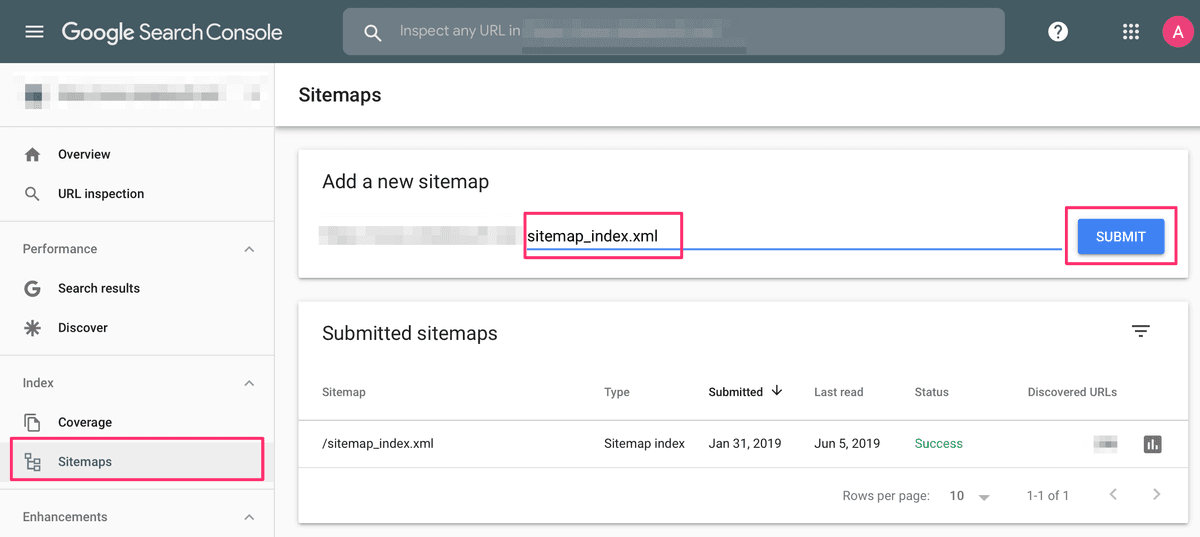
Shopify automatically generates an XML sitemap at yourdomain.com/sitemap.xml. Once the custom domain is connected and the store is live, log into Google Search Console, go to Sitemaps, and submit the new sitemap URL. This prompts Google to crawl and re-index the new Shopify pages. Also verify ownership of the domain in Search Console if the domain is new or was previously verified under a different property.
After the migration is live, crawl the new Shopify store using a tool like Screaming Frog or a comparable crawler. Look for internal links that point to old Shopline URLs or to pages that no longer exist on Shopify. Fix broken links by updating them to point to the correct Shopify URLs.
After the switch to Shopify, check Google Search Console weekly for the first 90 days. Watch for drops in impressions or clicks on the pages that held the strongest organic rankings. If a page loses significant traffic, confirm its 301 redirect is in place and that the content on the new Shopify URL matches the depth and structure of the original. Google's site-move guidance says reprocessing can take a few weeks to a few months.
Launching without thorough testing creates a poor first impression for new visitors and risks order failures. Complete this checklist before connecting the custom domain to Shopify and going live.
Schedule the domain cutover during the store's lowest-traffic period - typically late at night in the primary customer timezone. This limits order disruption during the DNS propagation period, which can take up to 48 hours for full global propagation. Keep the Shopline store active (but in maintenance mode if possible) until DNS propagation is confirmed complete and the Shopify store is receiving traffic normally.
Once the store is live on Shopify, the app ecosystem becomes available. These are the categories where Shopline merchants typically need to fill gaps immediately after the switch to Shopify.
Klaviyo integrates with Shopify's order and customer data to power automated flows - abandoned cart recovery, post-purchase sequences, and segmented campaigns. It is the most widely used email platform among Shopify merchants. Shopify Email is a simpler, built-in alternative for stores that need basic broadcast campaigns without advanced automation.
Judge.me, Loox or Trustify Review collects, displays, and syndicates product reviews. It supports photo and video reviews, automated review request emails, and Google Shopping review integration.
Smile.io runs points-based loyalty programs, referral programs, and VIP tiers. For merchants migrating from Shopline who had a loyalty program in place, Smile.io is the most established option on Shopify for rebuilding that program and communicating it to existing customers.
Shopline merchants serving both Mandarin-speaking and English-speaking audiences need multilingual capability on Shopify. Weglot translates the storefront and maintains translations automatically as new content is added. It is compatible with Shopify Markets for geo-targeted language delivery. Langify is an alternative with a different pricing model for stores that prefer manual translation control.
TinyIMG compresses product and theme images to improve page load speed - a direct ranking factor - and adds SEO metadata to images. It also scans for broken links and missing alt text across the store. For merchants whose product catalog has hundreds of images transferred from Shopline, a bulk optimization tool prevents speed issues from day one.
Synctrack Order Tracking connects Shopify to multiple carrier rates in real time and supports international shipping - relevant for Asian merchants shipping globally. Aftership is a strong alternative for merchants with high order volumes who need order fulfillment workflow management across multiple sales channels.
Lucky Orange records visitor sessions and shows heatmaps of how customers interact with product and collection pages. After migrating from Shopline to Shopify, session recordings help identify whether the new design causes drop-offs that did not exist on the old store. Address friction points in the first 30 days post-launch before they affect conversion rates long-term.
Moving a store from Shopline to Shopify takes work. A complete migration - covering data, design, redirects, and testing - requires between one and three weeks for most stores. Cutting corners on any phase, particularly the SEO protocol, creates problems that take months to recover from.
Done correctly, the transfer from Shopline to Shopify gives the business access to a platform built for global scale. The payment options, app integrations, multilingual tools, and developer resources that were out of reach on Shopline become available the day the new store goes live.
Follow the six phases in order. Start with the audit before touching any data. Protect the redirects before connecting the domain. Test before going live. The process is straightforward when the steps are followed in sequence - and the result is a Shopify store that carries forward everything the business built, without leaving organic rankings or customer data behind.
Read More: Shopify vs Shopline 2026: Complete Platform Comparison
Mantle winds down Sept 30, 2026. Move Mantle Billing to the Shopify Billing API: what changes by model, the mutations to call, and how to rebuild flex.
1785145152554.png&w=3840&q=75)
Mantle Affiliates shuts down Aug 14, 2026. Get the exact migration timeline plus 5 alternatives compared: Shoffi, PartnerDock, Affilitrak, Orbit, PartnerJam.
1785316492810.png&w=3840&q=75)
Fast Bundle deactivated on your Shopify store? Don't panic. Discover what caused the pause and how to seamlessly switch to trusted alternatives without losing sales.

Compare the 5 best Shopify mix and match bundle apps in 2026. Real ratings, verified pricing, and features of Fast Bundle, Easy Bundle Builder, Simple Bundles, and more.
1783332249856.png&w=3840&q=75)
See Letsmetrix Q2 2026 data on how freemium, paid & free plans change your time to 50 reviews and Shopify App Store SEO.
1783310383371.png&w=3840&q=75)
Halt Shopify app churn immediately with custom packaging automation and print on demand integration. Boost merchant retention and increase software usage today.
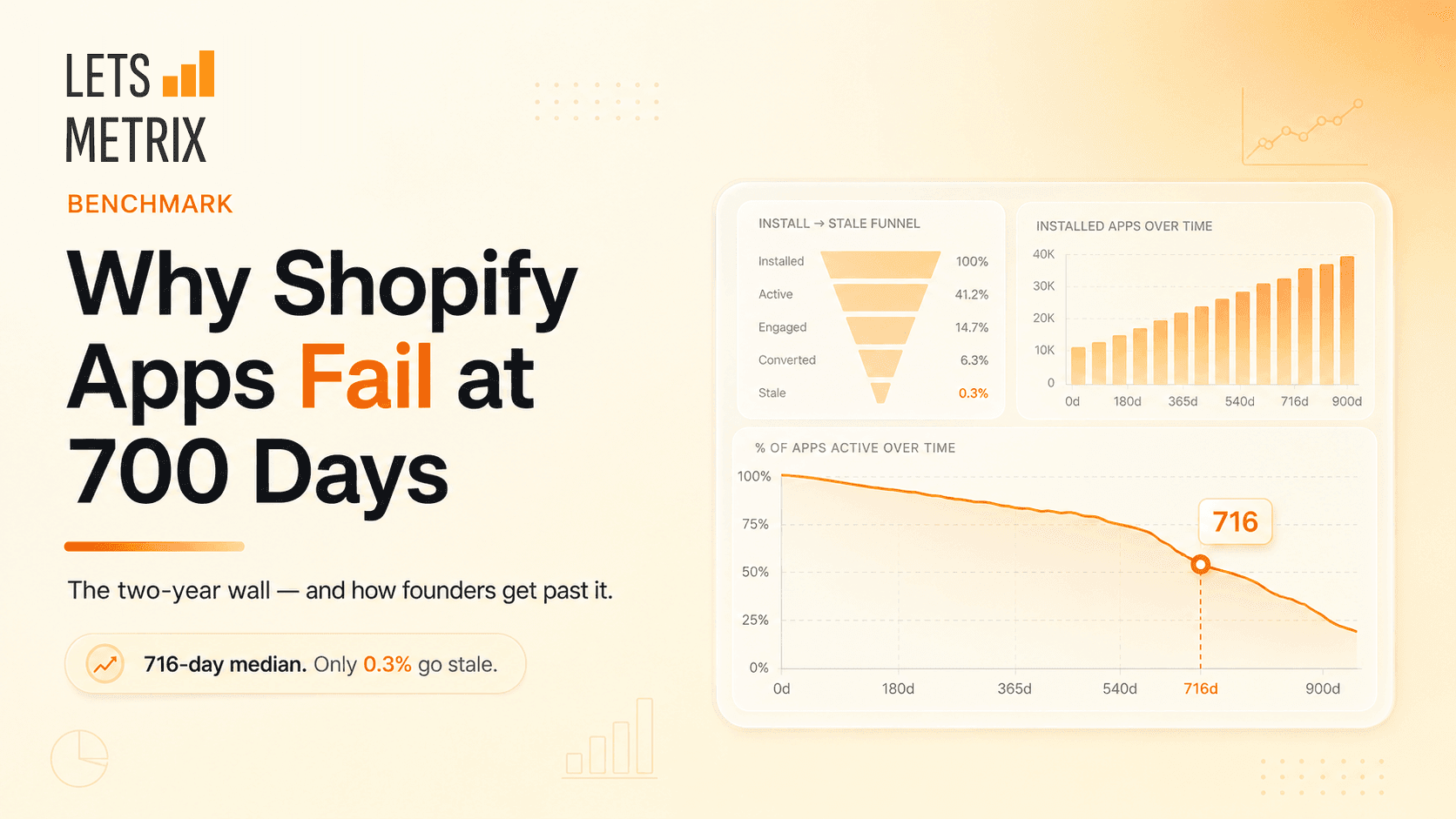
Building a Shopify app? The ones that fail rarely die at launch - they stall near 716 days. Here's why, and how to keep yours alive.
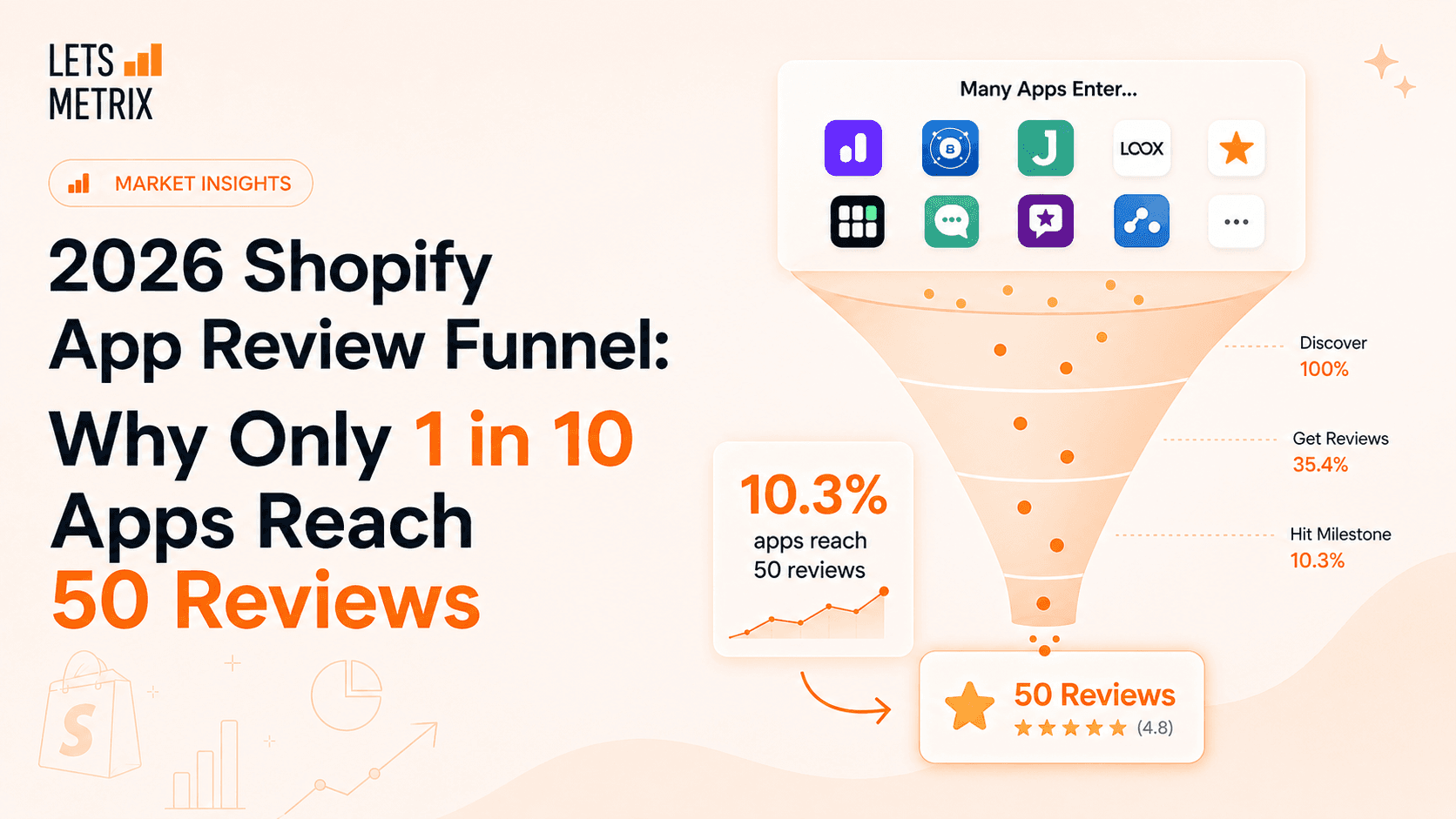
Q2 2026 data on the Shopify App Store's review acquisition funnel. Learn why traction - not survival - is the real bottleneck, and get expert strategies to earn your first 50 reviews.
1781843119189.png&w=3840&q=75)
Stop guessing how the Shopify App Store algorithm works. Audit any app’s real ASO score across 6 key ranking dimensions in seconds - 100% free, no signup required.
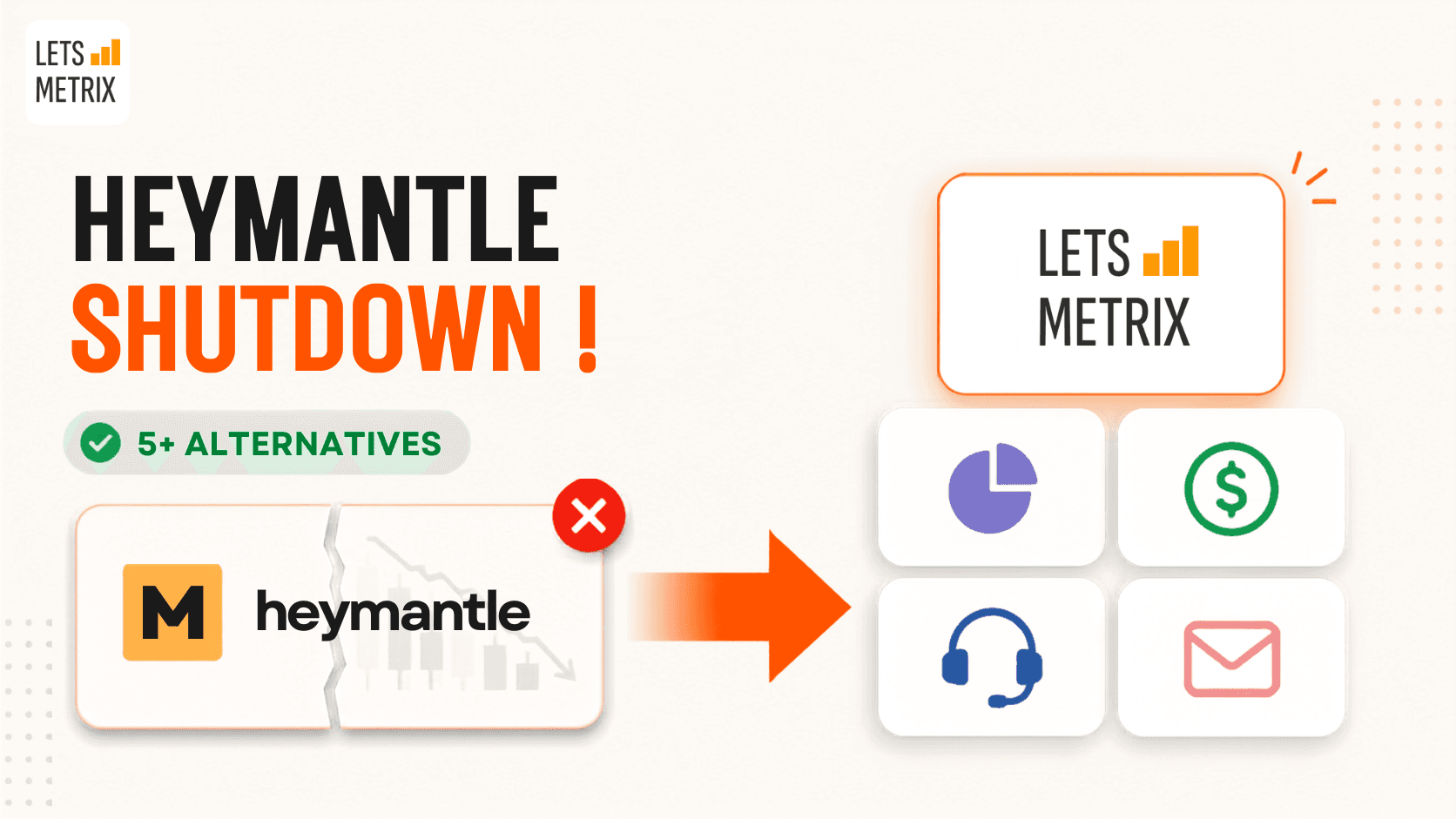
HeyMantle shuts down August 14, 2026. Compare 7 alternatives for Shopify app analytics, billing, email, and support and migration checklist before the deadline

Discover the best Shopify helpdesk apps for fast, AI-powered customer support. Compare top-rated tools with live chat, WhatsApp CRM & email integration.
![Best Shopify Pop-ups App in 2026 [+ Comparison Table]](/_next/image?url=https%3A%2F%2Fapi-wix.letsmetrix.com%2Fuploads%2FBestShopifyPopupApps1753692269470.png&w=3840&q=75)
Best pop up app for Shopify in 2026. Compare top-rated tools to grow email lists, boost sales, and cut cart abandonment.
![9 Best Shopify Translation Apps in 2026 [Expert Reviews]](/_next/image?url=https%3A%2F%2Fapi-wix.letsmetrix.com%2Fuploads%2FBestShopifyTranslationApps(1)1772099410877.png&w=3840&q=75)
Drive global sales with high-accuracy AI. Discover the best Shopify translation apps for 2026, featuring real-time translation, image localization, and SEO.
![7 Best Shopify Inventory Management Apps in 2026 [Expert Reviews]](/_next/image?url=https%3A%2F%2Fapi-wix.letsmetrix.com%2Fuploads%2FShopifyInventoryManagementApps1769568798368.jpg&w=3840&q=75)
Master your stock with the top Shopify inventory management apps for 2026. Compare AI-driven forecasting, multi-channel sync, and barcode scanning tools to scale your store.
![10 Best Shopify Page Builder Apps in 2026 [Real Ratings & Use Cases]](/_next/image?url=https%3A%2F%2Fapi-wix.letsmetrix.com%2Fuploads%2Fshopifypagebuilderapps(1)1766045668400.png&w=3840&q=75)
Looking for the best Shopify page builder app to design custom pages without code? Compare 10 top-rated apps with real reviews, features, and pricing to find the right fit for your store.

Discover the top 8 Shopify booking apps for 2026. Compare features, pricing, and ratings for appointments, rentals, and classes to find your perfect match.
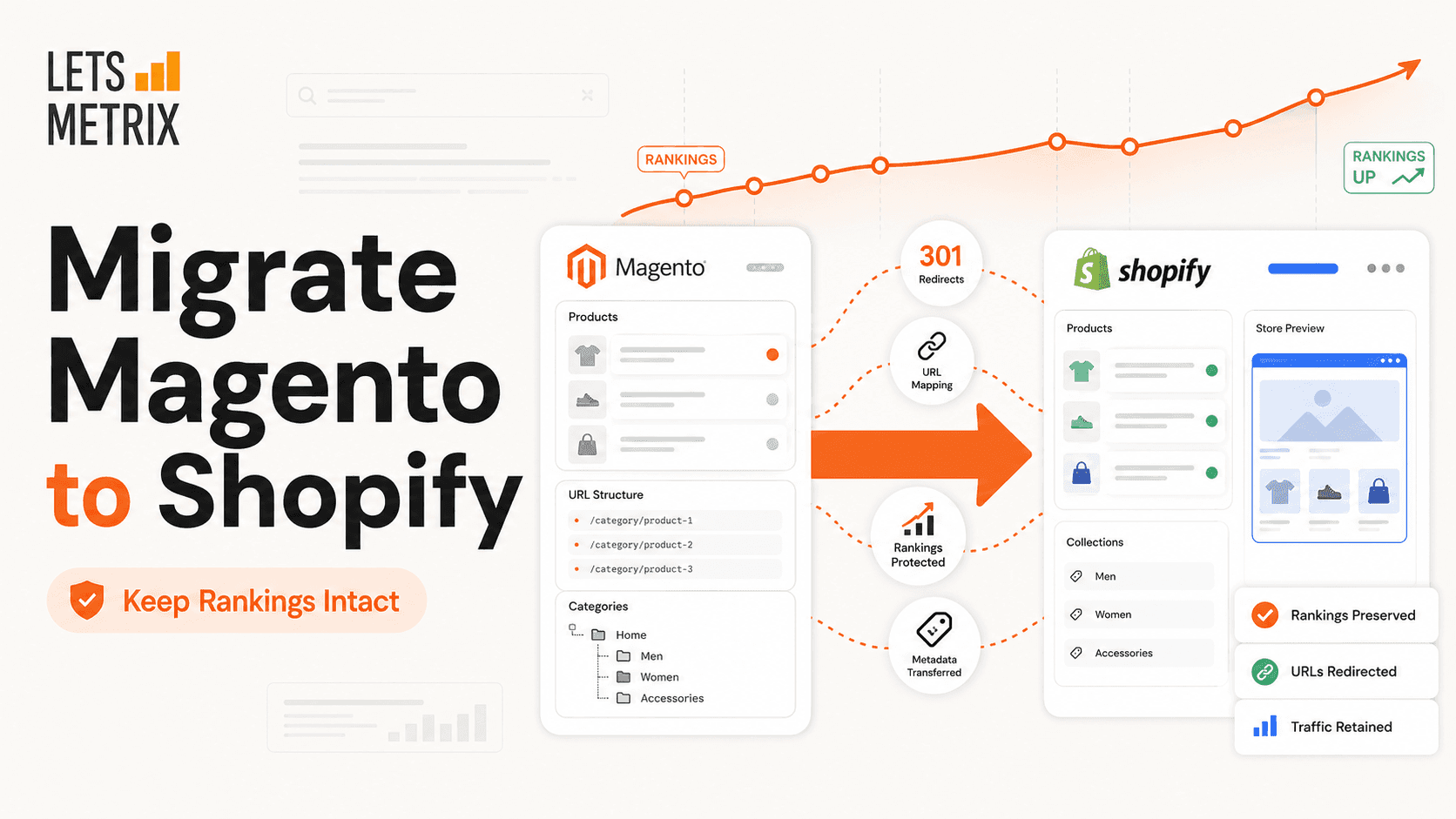
A technical 6-to-12-week roadmap to move from Magento to Shopify: audit, transfer, rebuild, and protect every 301 redirect. Built for store owners, not sales.
1781252894352.png&w=3840&q=75)
A sequential WordPress-to-Shopify roadmap: export products, map every redirect, test checkout, and go live in a low-traffic window - SEO equity intact.
1779178565213.png&w=3840&q=75)
Migrate from Squarespace to Shopify in 2026 without losing SEO rankings. A 6-phase playbook covering data transfer, 301 redirects, testing, and go-live.