
The 2026 Squarespace to Shopify Migration Guide: How to Transfer Your Store
Migrating from Squarespace to Shopify is one of the most common platform moves in ecommerce - and for good reason. Squarespace is a capable website builder, but it was designed with creatives and small businesses in mind, not high-volume online retail. When a store starts scaling - more SKUs, more orders, more need for third-party integrations - Squarespace starts to show its limits. Shopify, by contrast, is purpose-built for commerce at every stage of growth.
This guide covers every phase of the migration process: from your initial audit through data transfer, SEO protection, and going live. The steps here reflect the real-world process, including the parts most guides skip - like protecting your search rankings during the domain handover.
No fluff. No filler. Just a structured, accurate playbook for transferring your Squarespace store to Shopify in 2026.
Factor | Details |
|---|---|
Typical migration time | 3–14 days depending on store size and method |
Migration methods available | Manual CSV, automated migration tools, Shopify Partner |
Data you can transfer | Products, customers, orders (partial), blog posts, pages |
Biggest SEO risk | Broken URLs without 301 redirects - traffic and rankings drop |
Primary cost | Shopify plan from $39/month; migration tools from $30–$300 one-time |
What you cannot auto-transfer | Custom CSS/design, page layouts, checkout customizations |
Critical pre-launch step | Set up URL redirects and submit new sitemap to Google Search Console |
Recommended Shopify plan to start | Basic ($39/mo) for small stores; Grow plan ($105/m) for growing brands |
Why Online Merchants Switch from Squarespace to Shopify
Most merchants migrate from Squarespace to Shopify for four reasons: more payment gateway options, a larger app ecosystem, Shopify's higher-converting checkout, and native multi-channel selling on TikTok Shop, Meta, and Google Shopping.. Understanding what that wall is helps you validate the move before committing resources to it.
Squarespace Was Built for Websites, Not Stores
Squarespace launched as a website builder. Its ecommerce layer was added later, and that origin shows. The platform offers a smaller set of online payment options: Squarespace Payments (native, launched 2023), Stripe, and PayPal. Square is supported only for in-person point-of-sale, not online checkout. By comparison, Shopify natively integrates with 100+ payment providers globally. It only limited support for wholesale pricing tiers, product bundles, or advanced inventory tracking across multiple locations. These are table-stakes features for growing ecommerce businesses.
Shopify's App Ecosystem Changes the Equation
Shopify's App Store hosts nearly 20,000 apps. That number represents genuine flexibility: loyalty programs, subscription billing, advanced analytics, print-on-demand, dropshipping, B2B portals, and more. Squarespace's extension marketplace is significantly smaller and less specialized. For a merchant who needs to add functionality as the business grows, this gap matters.
Checkout Performance and Conversion
Shopify states its checkout converts 15% better on average than other platforms. The platform has published data showing that its one-page checkout drives measurable conversion improvements. Squarespace's checkout options are more rigid and do not offer the same depth of customization or performance optimization.
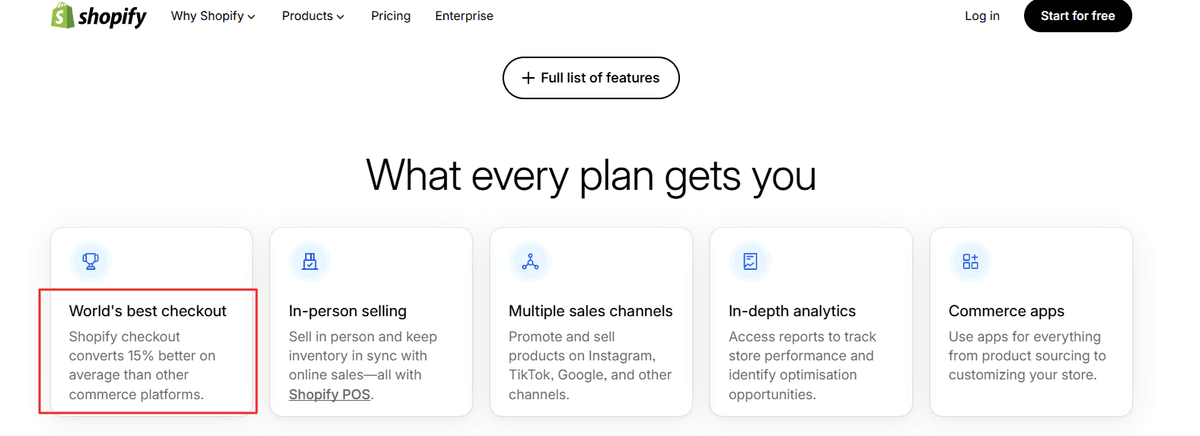
Multi-Channel Selling
Shopify natively connects to TikTok Shop, Meta (Facebook and Instagram), Google Shopping, Amazon, Pinterest, and more. Squarespace's social selling integrations are limited by comparison. For merchants who want to sell where their customers already spend time, Shopify has a structural advantage.
Reporting and Data Access
Squarespace's analytics are basic. Shopify provides detailed reports on product performance, customer lifetime value, abandoned checkout rates, and sales by channel - even on the Basic plan. Higher plans unlock custom reports and more granular data.
Phase 1: Run a Pre-Migration Audit Before You Touch Anything
A pre-migration audit prevents you from discovering problems after your store is already halfway moved. This phase takes a few hours but saves days of cleanup work later.
Catalog Your Existing Content
- Count your total number of products and variants
- List all product categories and subcategories
- Document blog posts and static pages (About, FAQ, Contact, etc.)
- Record the number of customer accounts in your database
- Note the number of historical orders you want to preserve
Export All Current URLs
This step is non-negotiable. Before migrating, crawl your Squarespace site using a tool like Screaming Frog SEO Spider (free up to 500 URLs) or Sitebulb. Export every URL that currently returns a 200 status. Save this list - it becomes the foundation of your redirect map in Phase 5.
Document Squarespace-Specific Features You Use
Make a list of everything on your current site that is built into Squarespace but may not transfer automatically:
- Custom CSS overrides
- Third-party embed codes (chat widgets, booking tools, video players)
- Form builders and their connected notifications
- Password-protected pages
- Squarespace scheduling or booking integrations
- Email campaigns connected to your store
Audit Your SEO Baseline
Before the migration, record your current organic traffic and keyword rankings. Use Google Search Console to download your top-performing pages by impressions and clicks. This data becomes your benchmark for measuring SEO health post-migration.
Check Your Domain Setup
Determine whether your domain is registered with Squarespace directly or through a third-party registrar. If Squarespace is your registrar, you will need to unlock the domain and obtain an authorization (EPP) code before transferring it to Shopify or another registrar.
Phase 2: Pick the Right Migration Method for Your Store Size
Three migration methods cover most cases: manual CSV (free, best for under 100 products), automated tools like Matrixify ($30–$500+, best for 100+ products with order history), and a Shopify Partner ($500–$25,000+, best for custom functionality or revenue-critical stores).
Option A: Manual CSV Migration (Free)
Best for stores with fewer than 100 products and a limited customer database. You export product and customer data from Squarespace as CSV files, reformat them to match Shopify's import template, and upload them in Shopify Admin. This method gives you full control but requires careful data formatting. Shopify provides a product CSV template in the Admin under Products > Import.
Limitations: Order history does not transfer via CSV with full fidelity. Blog posts and pages require manual copy-paste or a separate tool.
Option B: Automated Migration Tools (Paid)
Tools like Cart2Cart, LitExtension, and Matrixify connect directly to both platforms and handle the data mapping automatically. These tools support migration of products, customers, orders, blog posts, and categories. Pricing typically ranges from $30 to several hundred dollars depending on data volume.
These tools are the right choice for stores with hundreds of products, thousands of customers, or a significant order history you need to preserve for reporting purposes.
Option C: Hire a Shopify Partner (Full-Service)
Shopify's Partner Directory lists certified agencies and freelancers who specialize in store migrations. This option costs more - typically $500 to several thousand dollars depending on scope - but transfers the technical risk to an expert. For stores with custom functionality, large catalogs, or active marketing campaigns, a Shopify Partner often pays for itself in avoided errors.
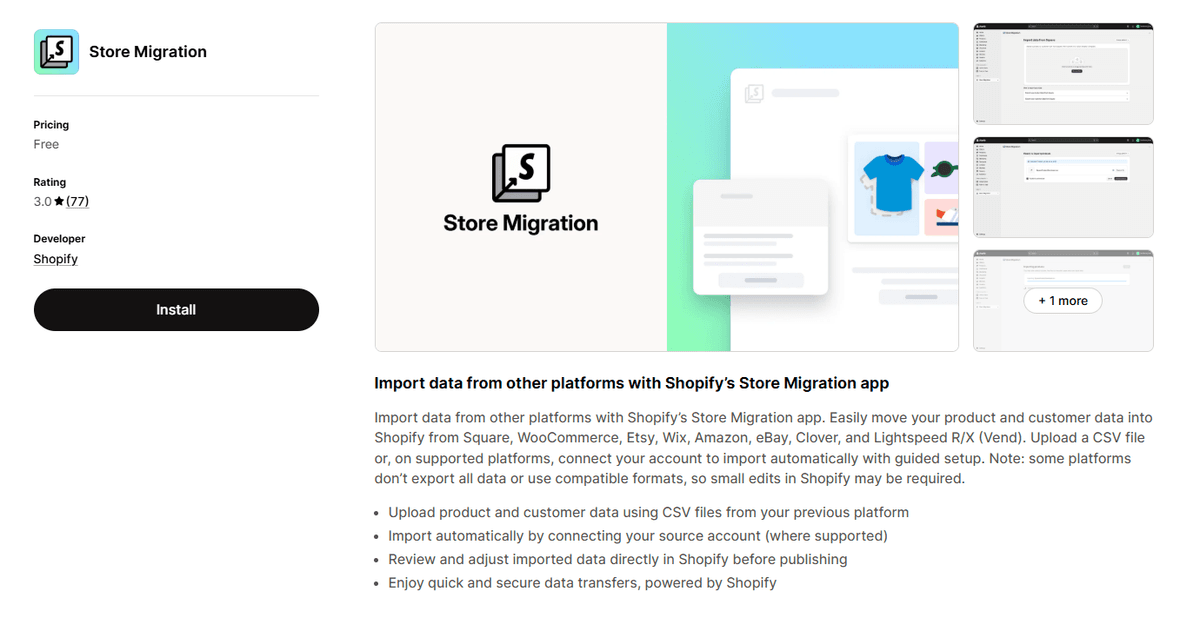
Shopify Store Migration app
Shopify offers a free Store Migration app (available on the Shopify App Store). It supports direct imports from Squarespace, BigCommerce, Big Cartel, Etsy, Mailchimp, PrestaShop, WooCommerce, Square, ShopKeep, and Lightspeed.
Phase 3: The Technical Data Transfer - A Step-by-Step Process
This phase walks through the manual CSV method, which forms the foundation of every migration approach. If you use an automated tool, these same data categories apply - the tool handles the formatting.
Step 1: Export Your Product Data from Squarespace
- Log in to your Squarespace account and go to Commerce > Inventory
- Click Export to download your product catalog as a CSV
- The export includes product names, descriptions, SKUs, prices, and image URLs
- Download product images separately if needed - Squarespace's export references hosted image URLs
Step 2: Reformat the Product CSV for Shopify
Shopify's product import CSV uses specific column headers: Handle, Title, Body (HTML), Vendor, Product Category, Type, Tags, Published, Option1 Name, Option1 Value, Variant SKU, Variant Price, Image Src, and more. Download Shopify's sample CSV from the import screen to use as your formatting reference. Map your Squarespace columns to the matching Shopify columns. This step is where most manual migrations require the most time.
Step 3: Import Products into Shopify
- In Shopify Admin, go to Products > Import
- Upload your reformatted CSV file
- Shopify will preview the import and flag any formatting errors
- Fix errors and re-upload until the preview shows clean data
- Confirm the import - Shopify processes the file and creates product listings
Step 4: Export and Import Customer Data
- In Squarespace, go to Commerce > Customer Accounts and export the customer list
- Reformat to match Shopify's customer CSV template (First Name, Last Name, Email, Phone, etc.)
- In Shopify Admin, go to Customers > Import customers and upload the file
- Note: Customer passwords cannot transfer between platforms - customers will need to reset their passwords on Shopify
Step 5: Handle Order History
Squarespace exports orders in a format that does not map cleanly to Shopify's order structure. If you need historical order data in Shopify for reporting, use Matrixify (formerly Excelify), which has a dedicated Shopify order import feature. For most merchants, importing a clean order history in CSV form is sufficient for record-keeping, even if the orders display as "imported" rather than organically created.
Step 6: Migrate Blog Posts and Static Pages
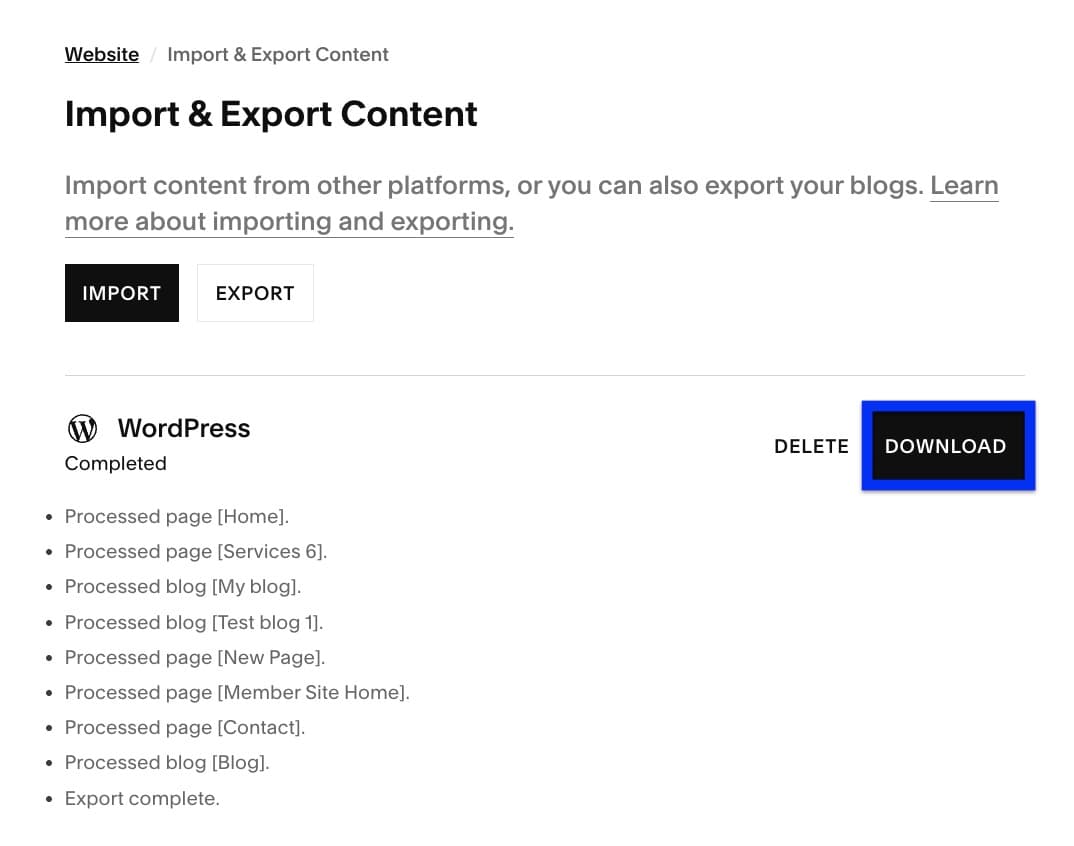
Squarespace allows you to export blog content as an XML file (Settings > Advanced > Import/Export > Export). Some migration tools parse this XML and create corresponding Shopify blog posts. For manual migration, copy each post's content into Shopify's blog editor (Online Store > Blog posts > Add blog post). For static pages like About and FAQ, rebuild them in Online Store > Pages.
Phase 4: Rebuild Your Front-End - Design, Navigation, and Store Logic
Shopify themes do not import from Squarespace - the front-end is rebuilt from scratch using Shopify's Theme Store.
Choose a Shopify Theme
Shopify's Theme Store offers both free and paid themes. Free themes like Dawn, Craft, and Sense are well-coded, fast-loading, and fully supported. Paid themes from third-party developers typically cost $180 - $350 as a one-time purchase and offer more design variety. Avoid themes with excessive features you will never use - they add page weight without benefit.
1779175933837.png&w=1200&q=75)
When evaluating themes, test them using Shopify's Theme Preview feature before purchasing. Check how they handle your product image aspect ratio, mobile navigation, and collection page layout.
Configure Navigation
Rebuild your main menu and footer links in Online Store > Navigation. Shopify supports nested menus (up to two levels deep by default, with more levels possible via custom theme code). Replicate the structure your customers already know — major navigation changes during a platform migration add unnecessary friction.
Set Up Payment Gateways
Activate Shopify Payments if you are in a supported country - it eliminates the additional transaction fee that applies when using third-party gateways. Connect PayPal Express Checkout as a secondary option. Configure Shop Pay, Apple Pay, and Google Pay in the payment settings to improve checkout conversion.
Configure Shipping Zones and Rates
Go to Settings > Shipping and delivery to recreate your shipping zones, carrier-calculated rates, and free shipping thresholds. If you use a fulfillment partner or third-party logistics (3PL) provider, connect them here via the relevant Shopify app.
Tax Settings
Shopify can automatically calculate taxes based on your store's location and your customers' locations. Review Settings > Taxes and duties to confirm the tax regions are correct and that any product-specific tax overrides are set up accurately.
Phase 5: The SEO Insurance Protocol - Protect Your Search Rankings
This is the phase that separates migrations that go smoothly from those that cost a business months of organic traffic recovery. URL structures differ between Squarespace and Shopify. Without proper redirects, every page that ranked on Google becomes a 404 error - and Google drops it from the index.
Understand the URL Structure Differences
Squarespace uses URL structures like:
/products/product-name(product pages)/blog/post-title(blog posts)
Shopify uses:
/products/product-handle(product pages - similar)/blogs/news/post-handle(blog posts - different structure)/collections/collection-handle(collection pages - new URL type)
Product URLs may align closely between platforms if the handle matches the Squarespace slug. Blog post URLs will almost always change because Shopify adds the blog name (e.g., /blogs/news/) as a prefix.
Build Your Redirect Map
Using the URL list you exported in Phase 1, create a two-column spreadsheet: the old Squarespace URL in column A, and the corresponding new Shopify URL in column B. Work through every product, blog post, collection, and static page.
Implement 301 Redirects in Shopify
- In Shopify Admin, go to Online Store > Navigation > URL Redirects
- For small lists (under 50 redirects), add them manually using the "Add URL redirect" button
- For larger lists, use the bulk import option - Shopify accepts a two-column CSV with Redirect from and Redirect to columns
- Verify that each redirect works by testing a sample of old URLs after implementation
Update Google Search Console
- Add your Shopify store domain as a new property in Google Search Console if it is not already verified
- Submit your Shopify sitemap:
yourdomain.com/sitemap.xml(Shopify generates this automatically) - Use the URL Inspection tool to check that Google can index key pages on the new platform
- Monitor the Coverage report for any 404 errors that appear in the days following launch
Preserve On-Page SEO Elements
For each product and blog post, verify that the meta title and meta description transferred correctly. In Shopify, edit these under the Search engine listing section at the bottom of each product or page editor. Shopify uses the product title as the default meta title if no custom value is set - review your top-traffic pages to confirm the titles are optimized.
Update Internal Links
After migration, scan your blog posts and page content for any internal links that still point to the old Squarespace URL structure. Update these links to the new Shopify URLs to ensure clean crawling and user experience.
Phase 6: Test Everything Before You Hit Go-Live
A full end-to-end test before switching your domain saves you from customer-facing failures during launch. Use a structured checklist - do not rely on memory.
Functional Testing Checklist
- Checkout flow: Place a test order using Shopify's Bogus Gateway (a built-in test payment processor). Confirm you receive the order confirmation email and that the order appears in Admin.
- Product pages: Verify that each product displays the correct images, variants, pricing, and descriptions.
- Collection pages: Confirm products appear in the correct collections and that filters work as expected.
- Navigation: Click every link in the main menu and footer on both desktop and mobile.
- Blog: Open 5–10 blog posts and confirm formatting, images, and links are intact.
- Contact forms: Submit a test inquiry and confirm you receive the notification email.
- Shipping rates: Add a product to the cart and proceed to checkout to verify that shipping rates calculate and display.
- Mobile experience: Test the entire customer journey on a mobile device - product browsing, cart, and checkout.
- Page speed: Run your homepage and a product page through Google PageSpeed Insights and note the scores as a baseline.
The Go-Live Window
Schedule your domain cutover during a low-traffic period - typically late evening on a Tuesday, Wednesday, or Thursday. Avoid weekends and peak sales periods. Transferring or pointing your domain to Shopify causes a brief DNS propagation window (typically 24–48 hours) during which some visitors may still reach the old Squarespace site. This is normal.
If your domain is registered with Squarespace, initiate the transfer to a third-party registrar (Namecheap, Cloudflare Registrar, or Porkbun) before or during this phase. If your domain is already with an external registrar, update the DNS A record or CNAME to point to Shopify's servers as directed in Shopify Admin > Settings > Domains.
Post-Migration Toolkit: Top Shopify Apps to Power Your New Store
Shopify's core platform handles the fundamentals. These apps extend it into a full-featured commerce operation.
Email Marketing
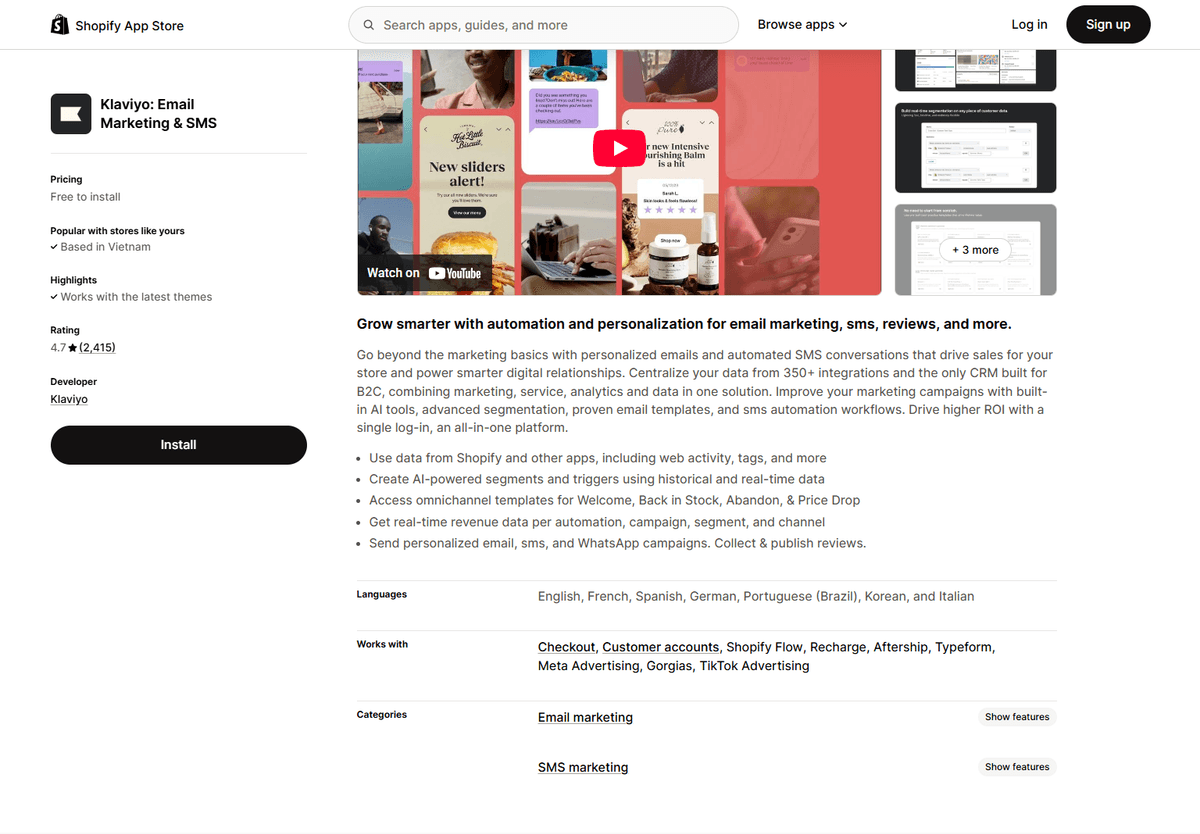
Klaviyo is the most widely used email marketing platform for Shopify stores. It syncs customer purchase data in real time and enables segmented flows for abandoned cart, post-purchase, and winback campaigns. Shopify Email is a simpler built-in option for stores just getting started.
Customer Reviews
Judge.me offers an automated review collection system with a free plan that covers most small store needs. Yotpo is a more powerful alternative with UGC and loyalty features, suited to larger brands. Both integrate directly with Shopify's storefront and product schema markup.
SEO
SEOWill scans your store for common SEO issues - missing meta descriptions, broken links, image alt text gaps - and provides a prioritized fix list. Tiny SEO adds structured data management and keyword tracking. These tools supplement Shopify's built-in SEO fields rather than replacing them.
Loyalty and Retention
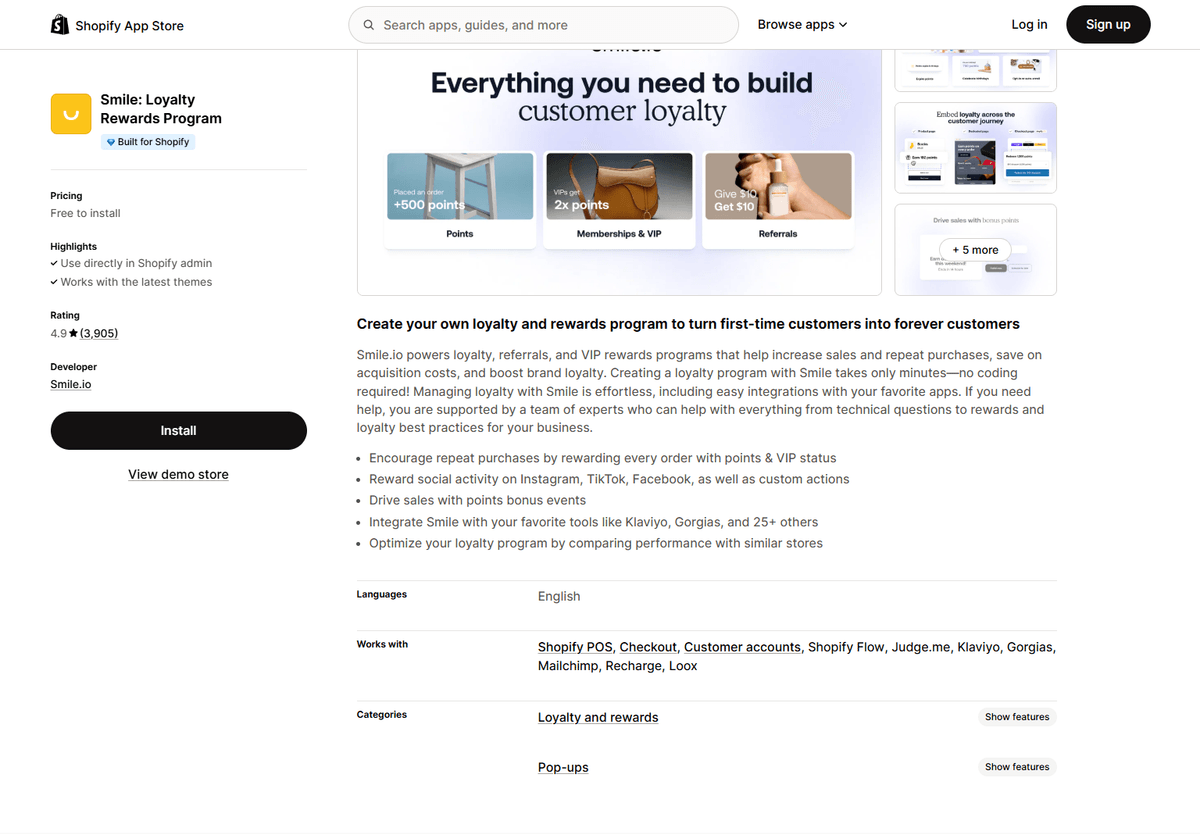
Smile.io adds a points-based loyalty program that works across purchases, referrals, and social actions. It integrates with Klaviyo and several review apps for a connected retention stack.
Analytics and Attribution
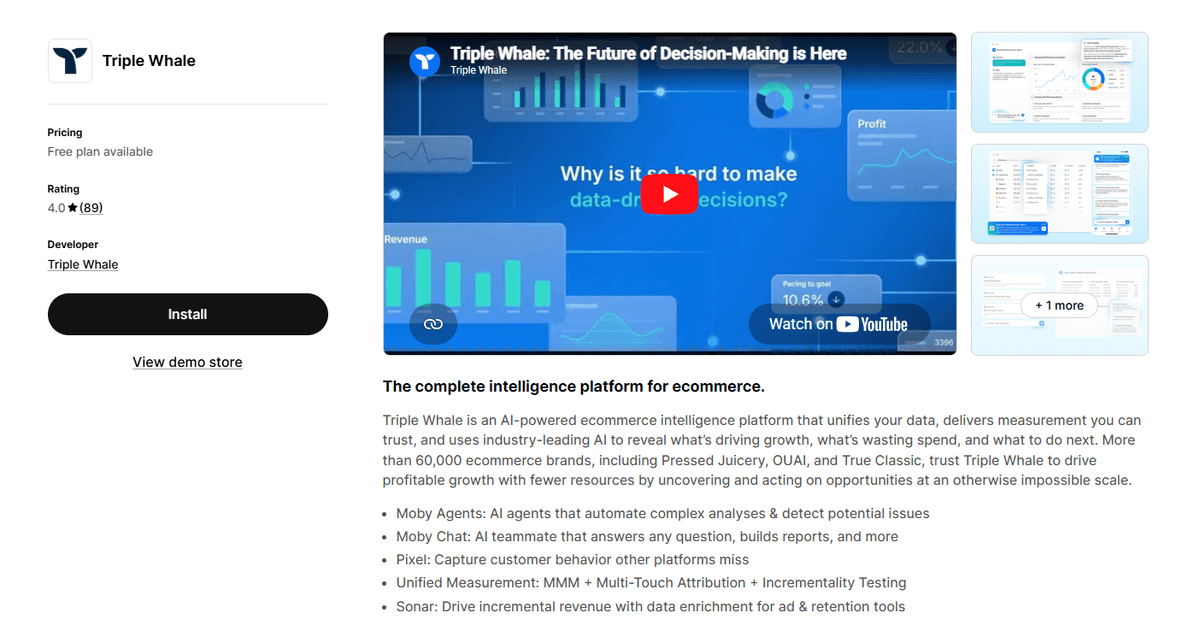
Triple Whale consolidates paid ad spend, revenue, and customer lifetime value data into a single dashboard. Polar Analytics serves a similar function with a focus on cohort analysis and profitability reporting. Both tools address the attribution gaps that Google Analytics alone cannot fill in a multi-channel retail environment.
Upsell and Cross-Sell
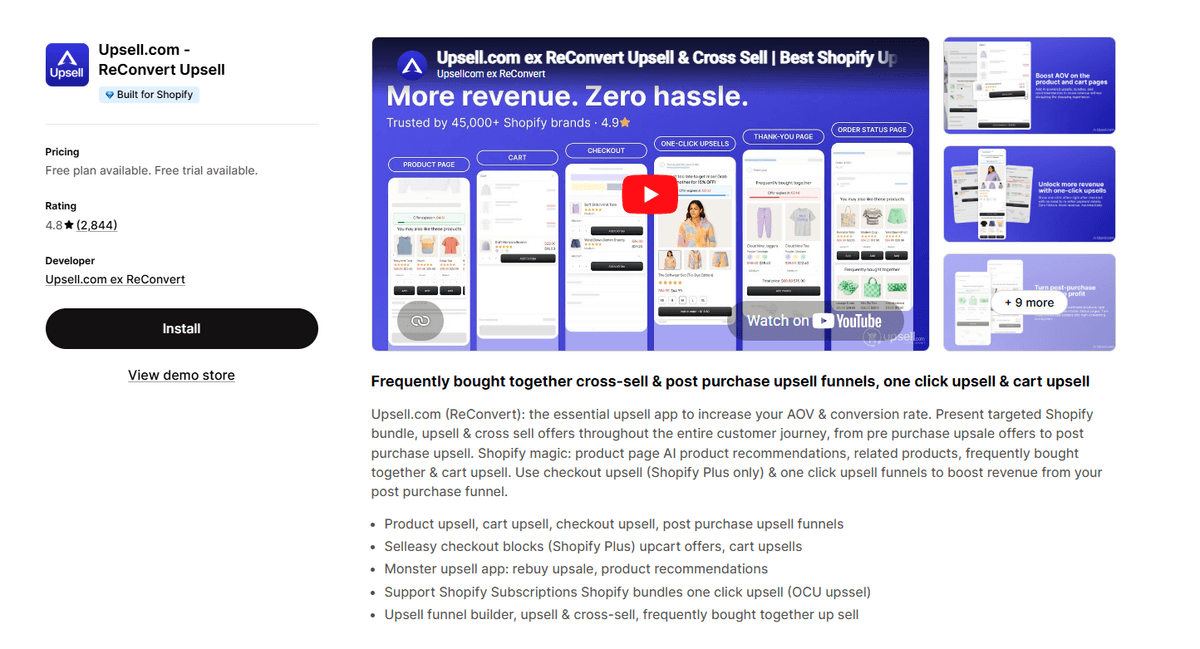
Upsell.com adds post-purchase upsell flows on the thank-you page - one of the highest-converting touchpoints in the entire checkout journey. It requires no coding and integrates with Shopify's native checkout.
Shipping and Fulfillment
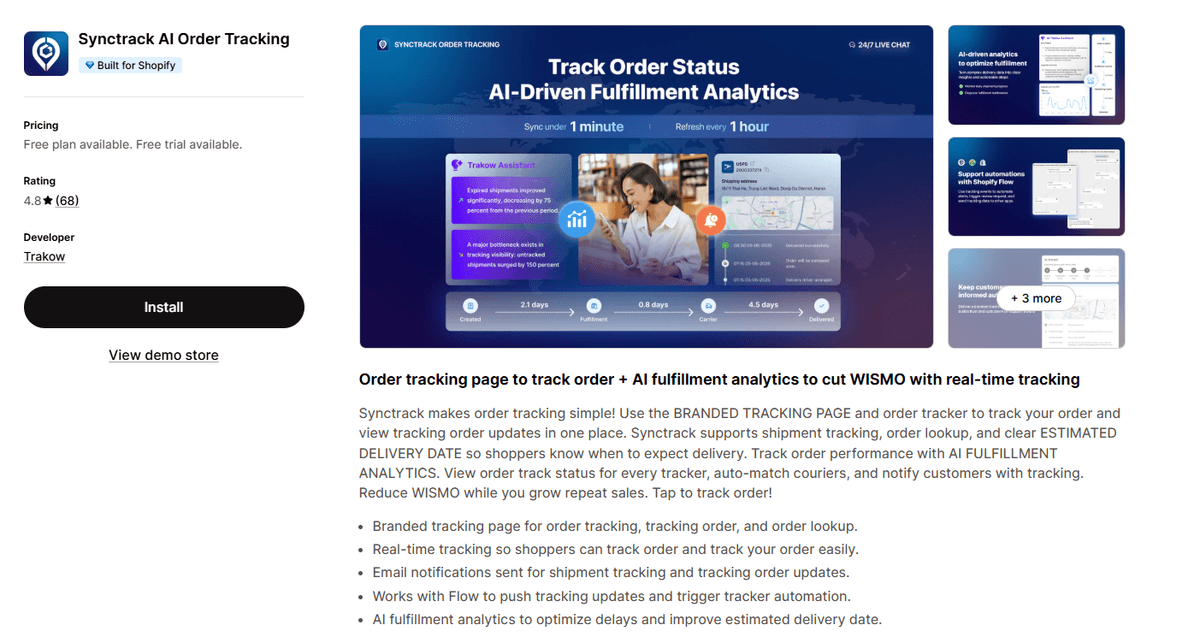
ShipStation and Synctrack Order Tracking both connect Shopify orders to multiple carrier accounts (UPS, FedEx, USPS, DHL) and automate label printing, tracking updates, and returns. For high-volume operations, ShipStation's automation rules reduce manual processing time.
Your Squarespace-to-Shopify Migration, Done Right
Moving from Squarespace to Shopify is a multi-phase project - not a single action. The merchants who complete it without losing traffic or sales are the ones who plan the work before starting it: auditing their current site, mapping their URLs, testing before launch, and monitoring Search Console in the weeks that follow.
The migration itself is straightforward when broken into stages. Data transfer comes first, then front-end rebuilding, then SEO protection, then testing. Each phase has a clear output. Work through them in order and the transition is manageable for a solo merchant or a small team.
Once the store is live on Shopify, the platform's ecosystem - payments, apps, analytics, and multi-channel selling - becomes fully available. That access is what makes the migration worth the effort for stores that have outgrown what Squarespace can offer.

1781843119189.png&w=3840&q=75)

![Best Shopify Pop-ups App in 2026 [+ Comparison Table]](/_next/image?url=https%3A%2F%2Fapi-wix.letsmetrix.com%2Fuploads%2FBestShopifyPopupApps1753692269470.png&w=3840&q=75)
![9 Best Shopify Translation Apps in 2026 [Expert Reviews]](/_next/image?url=https%3A%2F%2Fapi-wix.letsmetrix.com%2Fuploads%2FBestShopifyTranslationApps(1)1772099410877.png&w=3840&q=75)
![7 Best Shopify Inventory Management Apps in 2026 [Expert Reviews]](/_next/image?url=https%3A%2F%2Fapi-wix.letsmetrix.com%2Fuploads%2FShopifyInventoryManagementApps1769568798368.jpg&w=3840&q=75)
![10 Best Shopify Page Builder Apps in 2026 [Real Ratings & Use Cases]](/_next/image?url=https%3A%2F%2Fapi-wix.letsmetrix.com%2Fuploads%2Fshopifypagebuilderapps(1)1766045668400.png&w=3840&q=75)

1781062586886.png&w=3840&q=75)
1781252894352.png&w=3840&q=75)
1779178565213.png&w=3840&q=75)
1779079852354.png&w=3840&q=75)
1778146500970.png&w=3840&q=75)
1778052641749.png&w=3840&q=75)
1778220787051.png&w=3840&q=75)
1777884794983.png&w=3840&q=75)