
Wix to Shopify Migration Guide 2026 Without Losing Rankings or Revenue
Migrating from Wix to Shopify is one of the most consequential technical decisions a merchant can make. The process touches every layer of your business - product data, customer records, search rankings, checkout logic, and revenue continuity. When it is planned carefully, the move positions your store on infrastructure engineered for ecommerce at scale. When it is rushed, it destroys organic traffic, orphans customer data, and creates checkout failures on day one.
This guide was built on Shopify's documented data-import workflows, established SEO redirect protocols, and real migration patterns observed across stores of varying sizes. It covers every phase: the audit you run before touching a single file, the three available transfer methods, the technical steps to move products and customers, the SEO actions that protect your rankings, and the testing protocol before you flip the switch. Whether your catalog holds 50 products or 5,000, this framework applies.
Phase | Key Action | Estimated Time | Risk Level |
|---|---|---|---|
Pre-Migration Audit | Crawl site, export URL list, document integrations | 1–2 days | Low |
Choose Migration Method | Manual CSV, migration app, or Store Migration app | Half a day | Low |
Data Transfer | Move products, customers, orders, blog content | 1–5 days | Medium |
Front-End Rebuild | Theme setup, navigation, pages, checkout config | 3–10 days | Medium |
SEO Insurance Protocol | 301 redirects, sitemap, Search Console update | 1–3 days | High |
Testing & Go-Live | End-to-end checkout test, DNS cutover, monitoring | 1–2 days | High |
Why Merchants Switch to Shopify -The Business Case Behind the Move

Wix is a capable website builder that added ecommerce as a feature. Shopify is an ecommerce platform that added a website builder. That architectural difference becomes visible when a store starts to grow.
Wix supports 80+ payment gateways vs Shopify's 100+, but the more meaningful gap is Wix Payments' availability (15 countries) compared to Shopify Payments (39+), plus Shopify Payments waiving the additional transaction fee charged on external gateways. Shopify's native multi-channel tools connect your catalog directly to TikTok Shop, Google Shopping, Amazon, Facebook, and Instagram from one admin. Wix's equivalent integrations are more limited in scope and depth.
The app ecosystem gap is significant. The Shopify App Store carries nearly 20,000 apps covering every operational need - inventory, fulfillment, subscriptions, loyalty, reviews, upsells, and analytics. This breadth means that almost any workflow you need to automate has a tested, supported solution available.
On the infrastructure side, Shopify handles hosting, SSL, and CDN delivery on its own servers. Merchants do not manage server resources, uptime, or bandwidth. For stores that experience traffic spikes during promotions or peak seasons, this matters.
Finally, reporting. Shopify's built-in analytics cover sales over time, conversion rate by traffic source, average order value, customer return rate, and top products. Shopify Plus unlocks more advanced reporting. These dashboards give merchants the data they need to make decisions without requiring third-party BI tools for basic metrics.
Factor | Wix eCommerce | Shopify |
|---|---|---|
Payment gateways supported | 80+ | 100+ |
Native payment processor countries | 17 | 39+ |
App marketplace size | ~700 | ~ 20,000 |
Free themes | 14 | 24 |
Paid theme price range | $0–$300 | $140–$495 |
Multi-channel native (TikTok, Amazon, etc.) | Limited | Yes |
Built for | Website-first | Ecommerce-first |
Phase 1 - Audit Your Wix Store Before You Move a Single File
The audit phase determines how complex your migration will be and which method you should use. Do not skip it. The information you gather here shapes every decision that follows.
Inventory Your Content Assets
- Products: Total count, number of variants per product, number of product images, and whether you use metafields or custom attributes.
- Customer records: Total count of contacts with email addresses, purchase history, and shipping addresses.
- Order history: How far back you need records for accounting and customer service purposes.
- Blog posts and static pages: Count each one. Blog content does not transfer through standard CSV exports and requires a separate plan.
- Installed integrations: Email marketing tools, live chat, analytics tags, review widgets, and any custom scripts embedded in Wix.
Crawl and Export Your URL Structure
Use a crawler such as Screaming Frog SEO Spider (free up to 500 URLs) to crawl your live Wix store and export a complete list of every URL it finds. Save this file. You will need it in Phase 5 to build your redirect map.
While you crawl, note the exact URL pattern Wix uses for your products, collections, pages, and blog posts. Wix URLs follow patterns that differ from Shopify's structure, which means every URL on your site will change after migration. Knowing the current structure is the first step to mapping each old URL to its new Shopify equivalent.
Check Your Search Presence
Open Google Search Console for your domain and export the Performance report. Filter for queries and pages. Identify which URLs receive organic traffic. These are the pages where a missing redirect will cost you rankings. Prioritize them in your redirect map.
Also export your backlink profile from Search Console or a tool like Ahrefs or Semrush. External links pointing to specific pages on your Wix store need to resolve correctly on Shopify. If you have high-authority backlinks to specific product or blog URLs, those pages need a working 301 redirect on day one.
Phase 2 - Pick the Right Migration Method for Your Store
Three methods exist for transferring data from Wix to Shopify. The right choice depends on your catalog size and technical comfort level.
Method | Best For | Cost | What It Transfers |
|---|---|---|---|
Manual CSV Export/Import | Stores with fewer than 500 products | Free | Products, customers (separate CSVs) |
Shopify Store Migration App | Basic migrations, any size | Free | Products and customers (CSV upload, with guided field mapping) |
Third-Party Migration App | Stores with 500+ products or complex data | Paid (varies by record count) | Products, customers, orders, blog posts, reviews |
Manual CSV gives you full control over the data but requires you to reformat Wix's export file to match Shopify's product CSV template exactly. Shopify provides a sample CSV template in its help documentation that shows the required column headers and formatting rules.
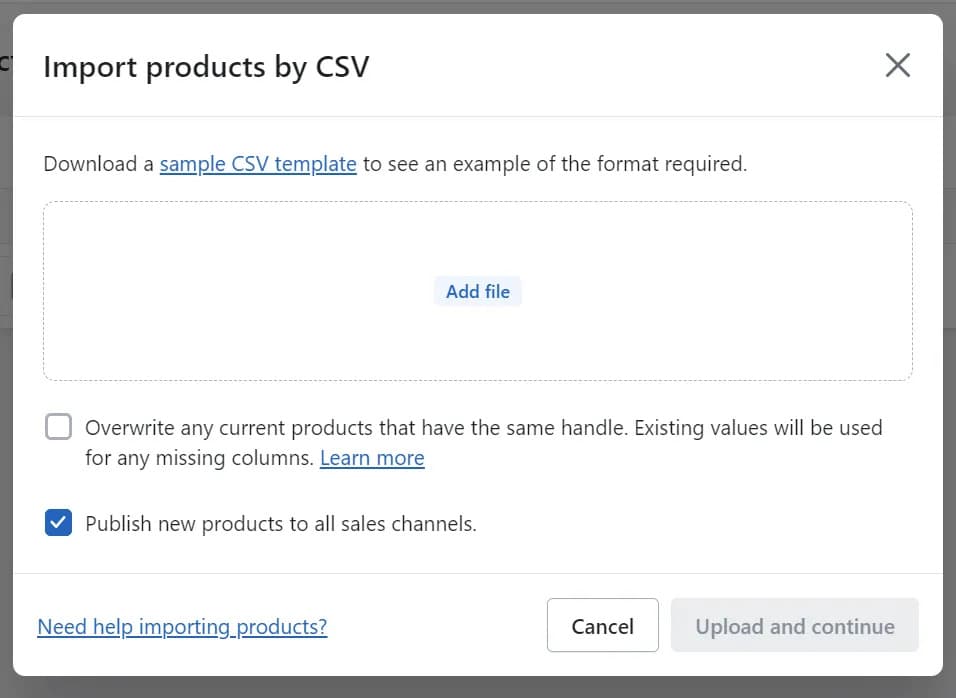
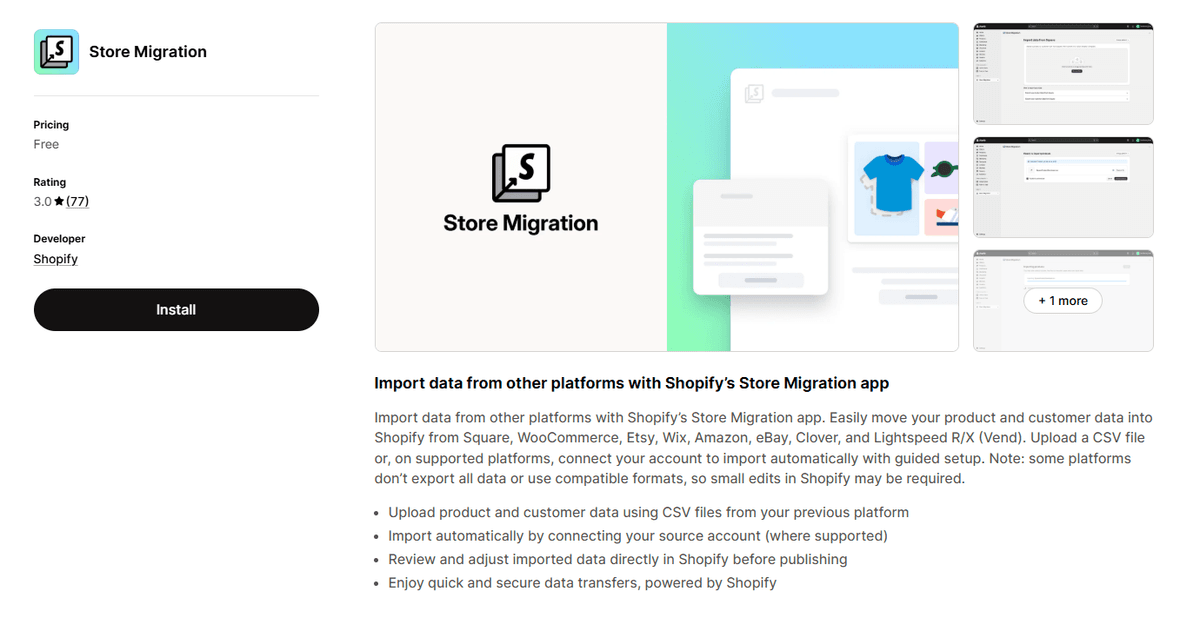
Shopify's Store Migration app (formerly Store Importer) is a free first-party app available in the Shopify App Store. It accepts exports from several platforms, including Wix, and handles the reformatting work for you. It is the right starting point for most merchants who want to avoid paid services.
Third-party migration services connect directly to both your Wix store and your Shopify store via APIs and handle the full transfer - including order history and blog posts - with less manual work. These services charge based on the number of records migrated. They are worth the cost for large catalogs where manual reformatting would take weeks.
Important note about the Store Migration app: Shopify's first-party migration app has two hard limitations to plan around. First, products can have a maximum of 3 options on import - Wix allows up to 6. Anything beyond three options needs to be handled through metafields or third-party apps. Second, prices by location are not supported; the import sets each product to its highest Wix price. Review the Shopify Help Center's Migrate from Wix guide before you start.
Phase 3 - How to Transfer Your Wix Store Data to Shopify, Step by Step
Transfer Products
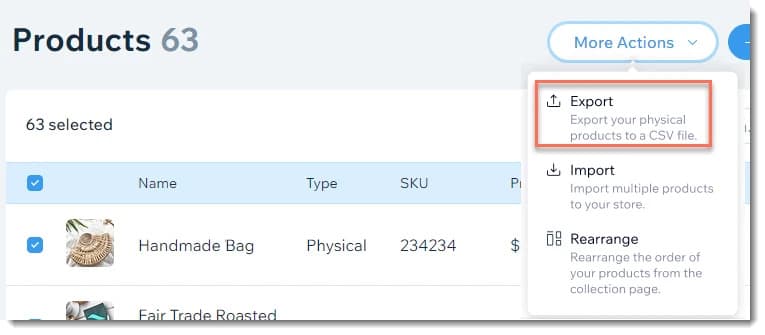
- In your Wix dashboard, go to Store Products and select Export to CSV. Wix exports your product list with fields for title, description, price, SKU, inventory, and images.
- Download Shopify's product CSV template from the Shopify Help Center. Compare the column headers between the two files.
- Map Wix columns to the corresponding Shopify columns. Key fields include: Handle (Shopify's unique URL identifier), Title, Body (HTML), Vendor, Type, Tags, Published, Variant Price, Variant SKU, Variant Inventory Qty, and Image Src.
- In your Shopify admin, go to Products > Import and upload your reformatted CSV. Shopify will validate the file and show a preview before importing.
- After the import completes, spot-check 10–20 products across your catalog to verify that titles, descriptions, prices, and images transferred correctly.
Transfer Customers
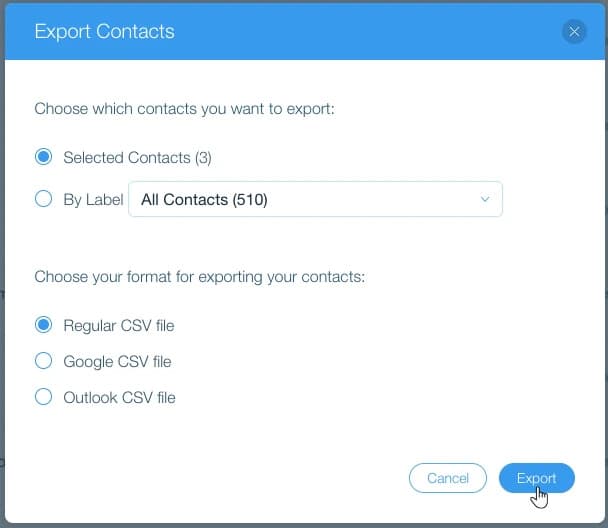
- In Wix, export your customer list from Contacts or Analytics & Reports. The export includes email addresses, names, and shipping addresses.
- Reformat the file to match Shopify's customer CSV template. Required fields include: First Name, Last Name, Email, Phone, Address1, City, Province, Province Code, Country, Country Code, and Zip.
- In Shopify admin, go to Customers > Import and upload the file. Note that Shopify does not import customer passwords. When customers log in for the first time, they will receive a password reset email from Shopify.
Transfer Order History

Shopify does not support importing historical orders through a standard CSV import in the same way it handles products and customers. To preserve order history for accounting and customer service, options include using a third-party migration service (LitExtension and Cart2Cart both support order migration), or retaining access to your Wix store in read-only mode for historical reference. Active, unfulfilled orders should continue to be processed through Wix until you complete the DNS cutover to Shopify.
Transfer Blog Posts and Static Pages
Wix does not include blog posts or pages in its standard product CSV export. For blog content, the options are:
- Manual copy: Copy the title, body, and meta data from each Wix blog post and recreate it in Shopify under Online Store > Blog Posts.
- Third-party migration app: LitExtension supports blog post migration as part of its full-store transfer service.
For static pages such as About, Contact, and FAQ, recreate them in Shopify under Online Store > Pages. The page handles (URL slugs) in Shopify should match the original Wix page slugs where possible to simplify your redirect map.
Phase 4 - Rebuild Your Storefront: Theme, Navigation, and Checkout
Choose a Shopify Theme
Shopify's theme store offers both free and paid themes. Dawn, Shopify's flagship free theme, is built on Online Store 2.0 architecture, which uses sections and blocks - a modular system that lets you customize page layouts without writing code. It performs well on Core Web Vitals benchmarks and is a reliable starting point for most stores.
Paid themes in the Shopify Theme Store range from $140 to $495, with most in the $180 - $400 bracket and offer more design variety and industry-specific layouts. Evaluate themes based on the layout your products require - a fashion store has different needs than a store selling digital downloads or B2B equipment.
Configure Navigation
Shopify manages menus under Online Store > Navigation. Rebuild your main navigation, footer navigation, and any secondary menus. Link each menu item to the correct collection, page, product, or blog. Test every link after setup.
Set Up Payment, Shipping, and Tax Settings
- Payments: Go to Settings > Payments to activate Shopify Payments (if available in your country) or connect a third-party provider. Shopify Payments eliminates the additional transaction fee that applies when using external payment gateways.
- Shipping: Configure shipping zones, rates, and carrier-calculated shipping under Settings > Shipping and Delivery.
- Taxes: Set up tax rules under Settings > Taxes and Duties. Shopify can auto-calculate taxes for US and EU merchants based on location.
Phase 5 - The SEO Insurance Protocol: Protect Your Rankings When You Transfer to Shopify
This phase carries the highest risk. URL changes without proper redirects result in 404 errors, which cause Google to drop your pages from its index. Depending on how much organic traffic your store receives, this can take months to recover from without the correct actions in place.
Step 1: Build Your Redirect Map
Using the URL export from your audit phase, create a spreadsheet with two columns: the old Wix URL in the left column, and the corresponding new Shopify URL in the right column. Shopify URLs follow these patterns:
- Products: /products/[product-handle]
- Collections: /collections/[collection-handle]
- Pages: /pages/[page-handle]
- Blog posts: /blogs/[blog-handle]/[post-handle]
Map every URL that appears in your Screaming Frog export. Prioritize URLs that receive organic traffic or have external backlinks.
Step 2: Set Up 301 Redirects in Shopify
In your Shopify admin, go to Online Store > Navigation > URL Redirects. Enter each old Wix URL as the redirect-from URL and the corresponding Shopify URL as the redirect-to URL. For stores with large numbers of redirects, the Matrixify app (formerly Excelify) lets you upload a CSV of redirects in bulk, which is far faster than entering them one by one.
Step 3: Migrate Meta Titles and Descriptions
In Wix, your product and page SEO fields hold the meta title and meta description for each page. These do not transfer through the product CSV. After your products are in Shopify, go to each product's edit page, scroll to the Search Engine Listing section, and enter the meta title and description from the corresponding Wix page. Do this for all collection pages and static pages as well.
Step 4: Submit Your Shopify Sitemap to Google Search Console
Shopify auto-generates a sitemap at yourdomain.com/sitemap.xml. After your domain points to Shopify, open Google Search Console, go to Sitemaps, and submit this URL. This tells Google to recrawl your site under its new structure.
Step 5: Verify Google Search Console After Cutover
In the 30 days after migration, check the Coverage and Pages reports in Search Console daily. Look for spikes in 404 errors. Any URL returning a 404 that was previously indexed needs a redirect added immediately. Also monitor the Core Web Vitals report to verify your new Shopify theme performs well on mobile and desktop.
Phase 6 - Test Your Store and Manage the Go-Live Window
Pre-Launch Testing Checklist
- Place a real test order using Shopify's Bogus Gateway (a test payment method in developer mode) and verify the full checkout flow.
- Place a live order with a real payment method, then issue a refund to confirm payment capture and refund processing work correctly.
- Verify every product image loaded. Check for any broken images, especially on variant images.
- Test every URL in your redirect map. Confirm that old Wix URLs return a 301 redirect to the correct Shopify URL, not a 404.
- Test the store on mobile. Navigate through collections, open product pages, and complete a checkout on a phone.
- Confirm that order confirmation, shipping confirmation, and abandoned cart emails send correctly under Settings > Notifications.
- Verify that Google Analytics 4 (GA4) receives data. Use the GA4 DebugView to confirm events fire on page views and purchases.
- Test all active discount codes.
- Submit a contact form and confirm the message arrives at the correct email address.
DNS Cutover Steps
- In Shopify admin, go to Settings > Domains and add your custom domain.
- In your domain registrar's DNS settings, update the A record to point to Shopify's IPv4 address (23.227.38.65), AAAA record pointing to Shopify's IPv6 address (2620:0127:f00f:5::) and add a CNAME record for www pointing to shops.myshopify.com.
- DNS propagation takes between 24 and 48 hours. During this window, both your old Wix store and your new Shopify store may appear live to different visitors depending on their DNS cache.
- Shopify provisions your SSL certificate automatically once the domain resolves correctly.
- Keep your Wix subscription active for at least 30 days after cutover. Do not cancel it immediately - you may need to reference content or settings from the old store.
Delete any other A records on the domain - multiple A records cause inconsistent routing where some visitors land on Shopify and others reach the old destination. Confirm you do not have DNSSEC active or Cloudflare proxy enabled, as both block Shopify's SSL provisioning.
DNS propagation typically completes within a few hours but can take up to 48 hours in worst cases. During this window, both your old Wix store and your new Shopify store may appear live to different visitors depending on their DNS cache.
Shopify provisions your SSL certificate automatically once the domain resolves correctly. If SSL fails after 48 hours, check that no CAA records are blocking Let's Encrypt, Google, or SSL.com from issuing certificates.
Keep your Wix subscription active for at least 30 days after cutover. Do not cancel it immediately - you may need to reference content or settings from the old store.
Post-Migration Toolkit: Shopify Apps to Power Your New Store
Wix includes several built-in features - reviews, chat, email marketing - that Shopify does not replicate natively. These Shopify apps cover the gaps and in most cases offer more depth than the Wix equivalents.
Need | Recommended App | Free Plan Available |
|---|---|---|
Product reviews | Judge.me Product Reviews | Yes (paid from $15/mo) |
Photo & video reviews | Loox | Yes (paid from $49.99/mo) |
Email marketing & automation | Klaviyo | Yes (free to install, paid from $15/mo) |
SEO auditing | SEOWILL | Yes (paid from $29.99/mo) |
Live chat & helpdesk | Chatty Live Chat | Yes (paid from $19.99/mo) |
Order tracking | Synctrack Order Tracking | Yes (up to 20 shipments/mo, paid from $9/mo) |
Enhanced site search | Smart Product Search & Filter | Yes (for development, paid from $14/mo) |
Bulk data import/export | Matrixify | Limited free plan (paid from $20/mo) |
Install apps after your store is live and your data migration is confirmed complete. Adding apps during migration adds variables that can complicate troubleshooting if something goes wrong.
Common Wix to Shopify Migration Mistakes (And How to Avoid Them)
Cancelling Wix before redirects are verified
The most expensive mistake on this list. Once Wix is cancelled, you cannot retrieve product descriptions, blog post structures, or page metadata for the redirect map. Keep Wix active for a minimum of 30 days after DNS cutover.
Skipping the AAAA record (IPv6)
Most migration guides only mention the A record and CNAME. The AAAA record is documented in the Shopify Help Center and is required for IPv6-only visitors to reach your store reliably. Missing it does not always break the site, but it causes intermittent SSL provisioning failures.
Not migrating meta titles and descriptions
The most-cited cause of post-migration ranking loss. Wix product CSV exports do not include SEO fields. Every product, collection, and page needs its meta title and description entered manually in Shopify's Search Engine Listing section. Skipping this resets your SEO progress to zero on every page.
Underestimating theme rebuild time
Wix's pixel-precise drag-and-drop layouts do not translate to Shopify's section-based theme architecture. Teams consistently underestimate this. Budget 2 to 4 weeks for theme work on a mid-size store, not 2 to 4 days.
Forgetting customer password communication
Wix customer passwords are hashed and cannot be exported. When customers log in to the new Shopify store for the first time, they need to use the password reset flow. Send a proactive email 48 hours before launch explaining this. It eliminates roughly 90% of "I can't log in" support tickets on day one.
Migrating without GA4 baseline data
Your Wix to Shopify Migration: What Comes Next
The migration from Wix to Shopify is not a single event - it is a structured process that runs across several days or weeks depending on your catalog size and how much content your store carries. Each phase builds on the one before it. The audit informs the transfer method. The transfer method determines how much manual cleanup the front-end rebuild requires. The redirect map protects the traffic that takes months to earn.
The merchants who complete this migration without losing rankings or revenue are the ones who treat the SEO protocol as non-negotiable, test the full checkout before touching DNS, and keep their Wix store accessible for reference during the transition period. The technical steps are repeatable and documented. Execution and attention to detail separate a clean migration from a costly one.
Once your store runs on Shopify and your organic traffic returns to its pre-migration baseline - typically within 60 to 90 days when redirects are complete - the platform's ecommerce infrastructure, app ecosystem, and multi-channel integrations are available to support growth that Wix's architecture was not built to sustain.
1781843119189.png&w=3840&q=75)

![Best Shopify Pop-ups App in 2026 [+ Comparison Table]](/_next/image?url=https%3A%2F%2Fapi-wix.letsmetrix.com%2Fuploads%2FBestShopifyPopupApps1753692269470.png&w=3840&q=75)
![9 Best Shopify Translation Apps in 2026 [Expert Reviews]](/_next/image?url=https%3A%2F%2Fapi-wix.letsmetrix.com%2Fuploads%2FBestShopifyTranslationApps(1)1772099410877.png&w=3840&q=75)
![7 Best Shopify Inventory Management Apps in 2026 [Expert Reviews]](/_next/image?url=https%3A%2F%2Fapi-wix.letsmetrix.com%2Fuploads%2FShopifyInventoryManagementApps1769568798368.jpg&w=3840&q=75)
![10 Best Shopify Page Builder Apps in 2026 [Real Ratings & Use Cases]](/_next/image?url=https%3A%2F%2Fapi-wix.letsmetrix.com%2Fuploads%2Fshopifypagebuilderapps(1)1766045668400.png&w=3840&q=75)

1781062586886.png&w=3840&q=75)
1781252894352.png&w=3840&q=75)
1779178565213.png&w=3840&q=75)
1779079852354.png&w=3840&q=75)
1778146500970.png&w=3840&q=75)
1778052641749.png&w=3840&q=75)
1778220787051.png&w=3840&q=75)
1777884794983.png&w=3840&q=75)